![S911logo350350-2.png]](https://help.getshare911.com/hs-fs/hubfs/S911logo350350-2.png?width=40&height=40&name=S911logo350350-2.png)
Dispatch tells you where. Share911 shows you what's happening inside — before you arrive. This guide is for everyone at a public safety agency that works with a Share911 site: the telecommunicator at the console, the responder in the field, and the commander or chief. Each chapter says who it is for. It takes about 15 minutes. Screens are from a demo agency and a demo school; your agency's alerts and permissions may vary. Share911 is free to public safety agencies.
1. What Share911 gives you before you arrive
For everyone. Takeaway: Dispatch tells you where. Share911 shows you what's happening inside — before you arrive.
The 911 call tells you a school or a workplace has a problem and roughly where. From that moment until the first unit is through the door, the people inside know far more than you do — which room, how many, whether it's moving, who's hurt — and none of it reaches you except through the one caller still on the line.
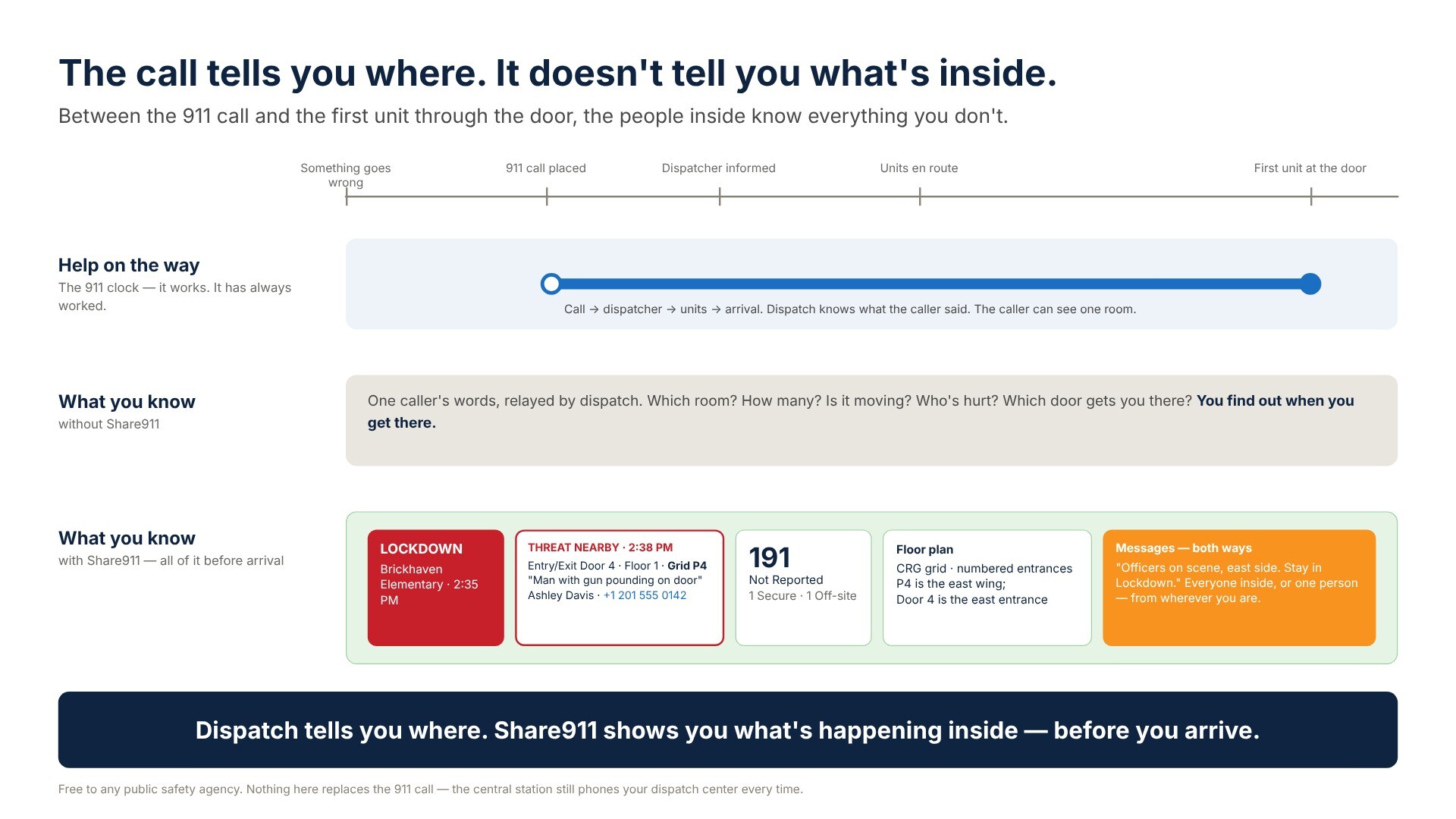
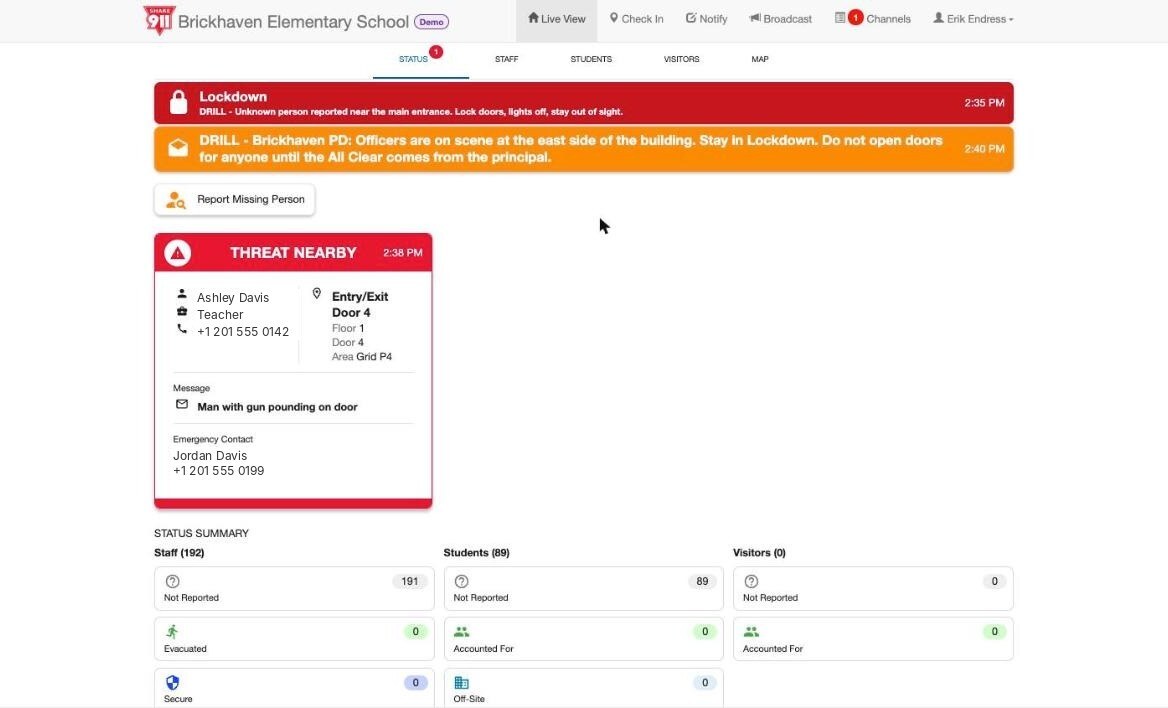
Share911 closes that gap. When someone inside taps a button, every coworker gets it — and so does every connected agency: the alert, the live board of who has checked in where, and the check-in cards that say Threat Nearby — Entry/Exit Door 4, Floor 1, Grid P4 — man with gun pounding on door, with the reporter's name and phone and a time stamp.
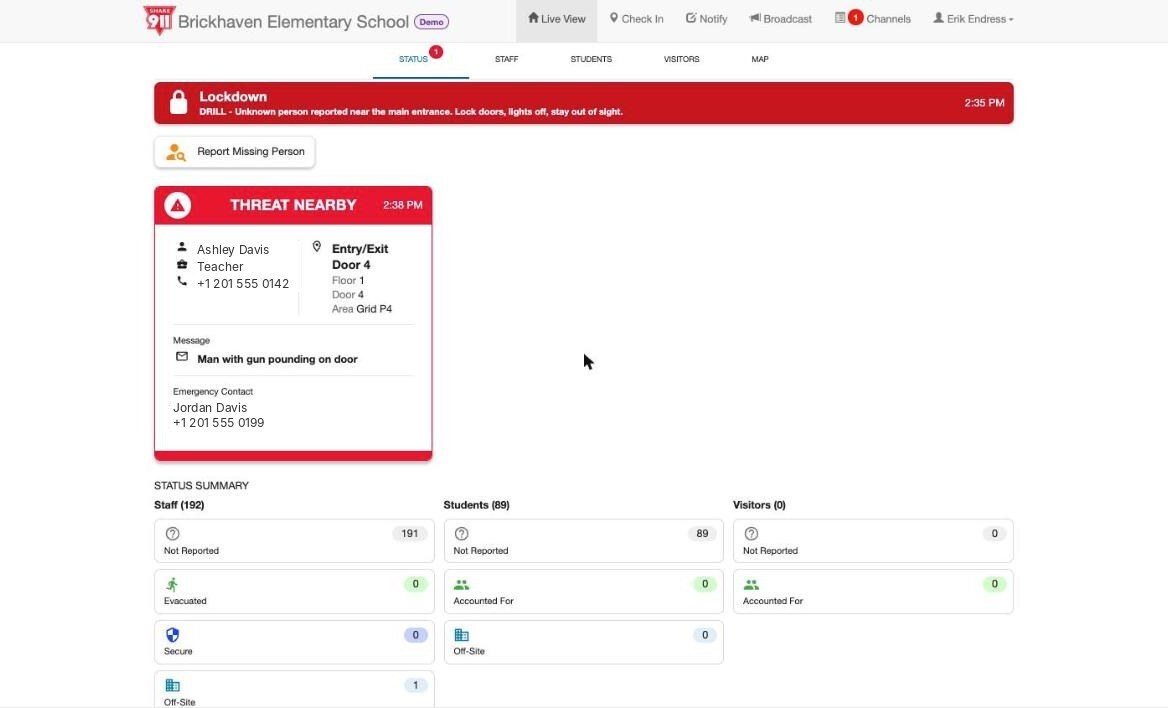
What a responder sees: the Lockdown banner, the Threat Nearby card with door, floor and grid square, and the counts.
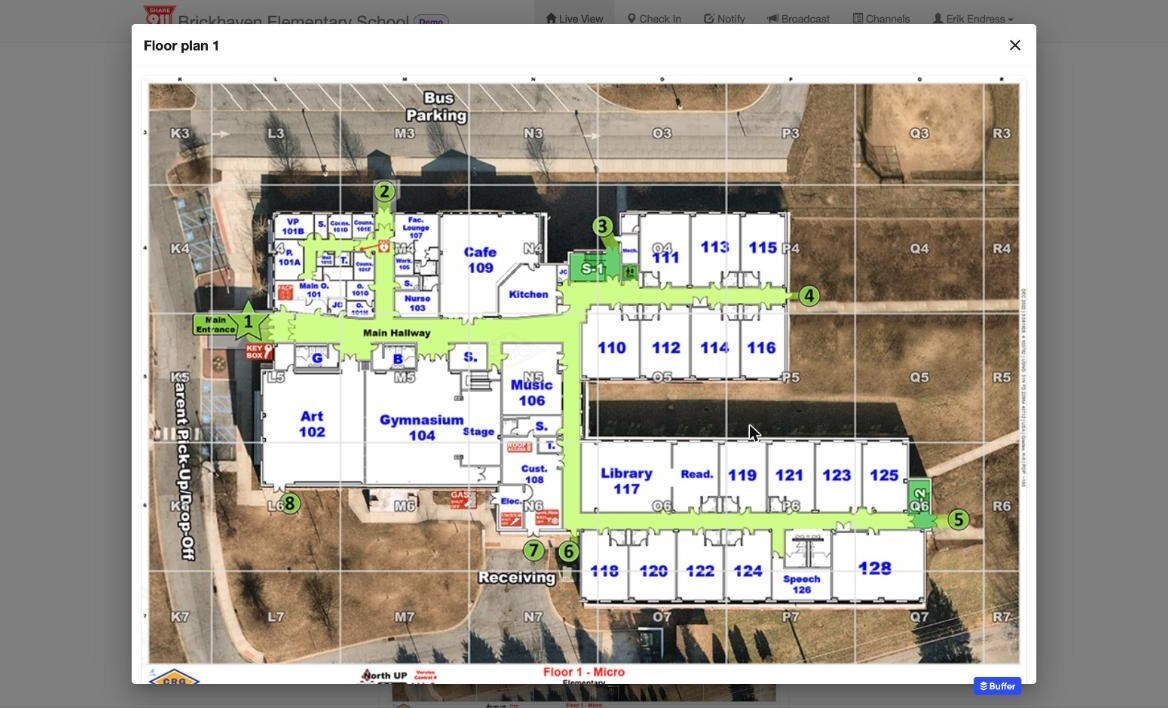
The same site's floor plan, gridded, with numbered entrances — so Grid P4 and Door 4 mean something.
It is free to any public safety agency. It doesn't replace the 911 call — the same event still reaches your dispatch center by phone, every time — it puts the inside of the building on your screen while that call is still happening.
You're done with this chapter when you can say what you'd see on Share911 that you wouldn't hear on the radio.
2. How an alert reaches your agency
For dispatch and command. Takeaway: Two paths, same event — the 911 call you always get, and the live picture you get because you're connected.
Two things happen the second a protected site activates Share911. First, a live operator at the central station calls your 911 center — for every emergency check-in, every broadcast alert, and the All Clear. That happens whether or not your agency has ever heard of Share911. Second, if your agency is connected — an agency record on Share911 with your personnel enrolled — the same alert reaches your people electronically: desktop popup, phone push, text, email.
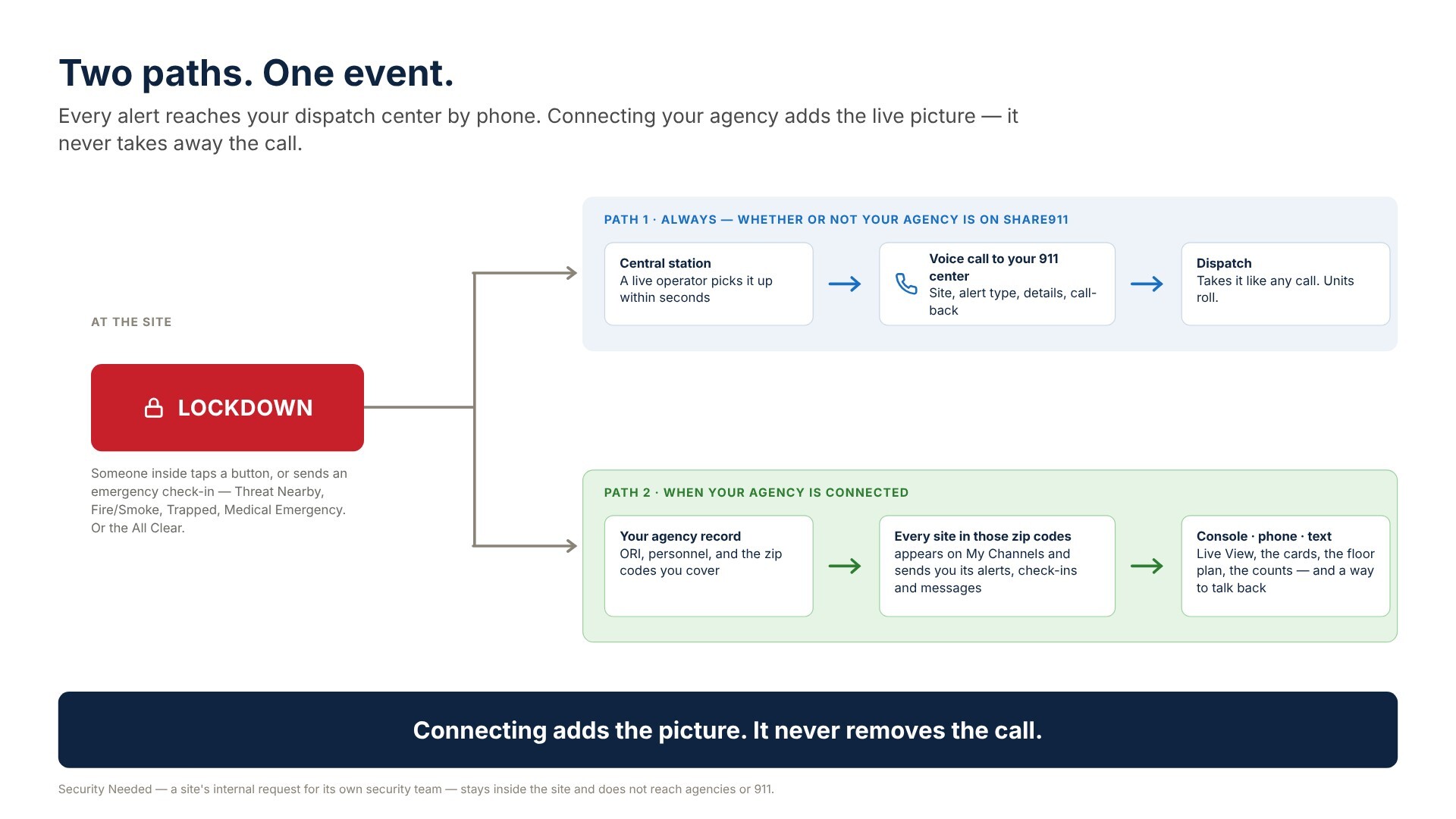
The Broadcast screen says it in so many words: "Broadcast Lockdown to ALL PUBLIC SAFETY and school recipients."
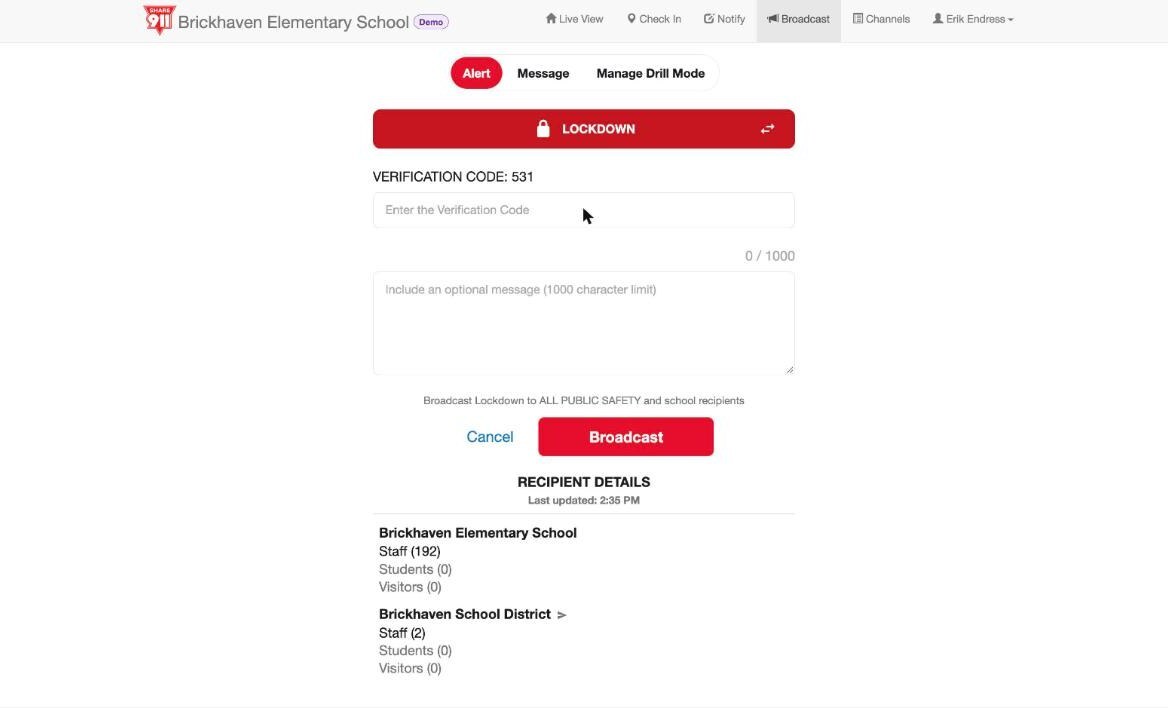
Which sites you see is decided by zip code: an agency lists the zip codes it covers, and every channel at a physical address in those zip codes appears on its My Channels screen and sends it alerts.
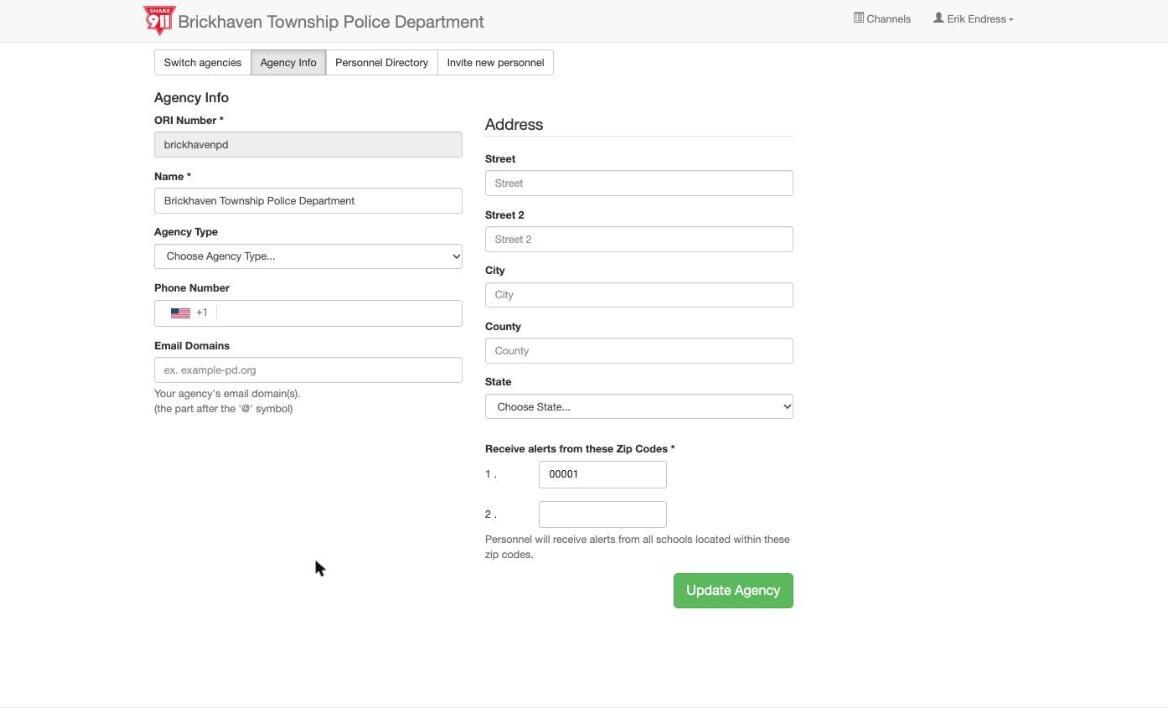
The agency record. The zip codes at the bottom decide which sites you see.
What arrives: broadcast alerts (Hold, Secure, Lockdown, Evacuate, Shelter, Safety Check, All Clear — names vary by site), the four emergency check-ins (Threat Nearby, Fire/Smoke Condition, Trapped, Medical Emergency), broadcast messages from the site, and Notify items. Security Needed does not come to you — that's the site's internal request for its own security team.
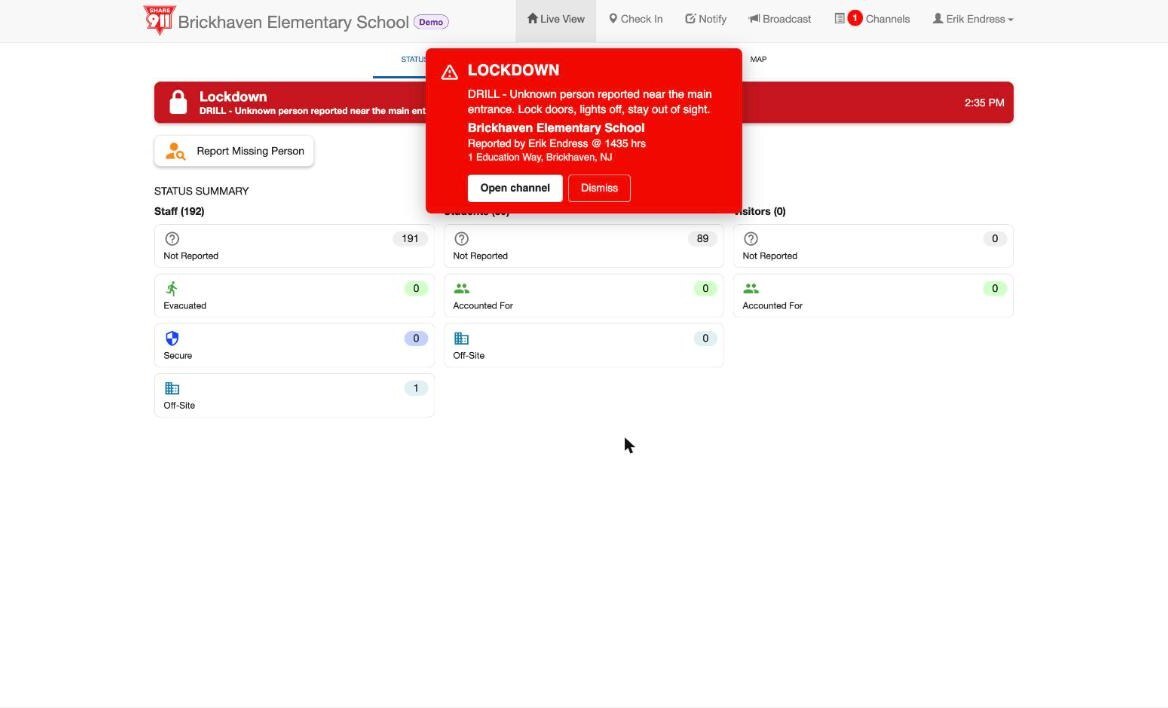
On a desktop the alert arrives as a popup with the alarm sound.
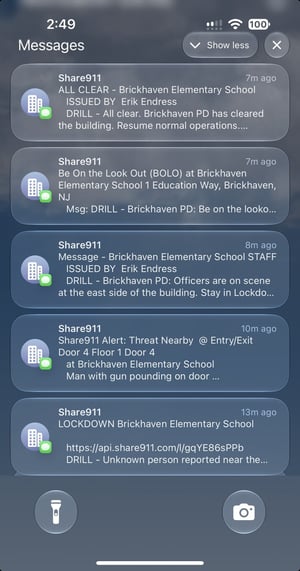
By text, a whole drill reads like this: Lockdown, the Threat Nearby check-in, the PD's message, a BOLO, the All Clear.
You're done when you know which zip codes your agency covers and who at your agency receives alerts.
3. Reading the live picture
For dispatch first, then everyone. Takeaway: My Channels tells you which building. Live View tells you what's happening in it. Not Reported is your number.
My Channels is the agency's home screen and the thing employees never see: every site in your zip codes on one list — the school district, each school, the township building — each with a colored status bar. When something is active, an Active Incidents section appears at the top with the site name, the alert type and the time, and the Channels item in the nav gets a red count. One glance tells you which building.
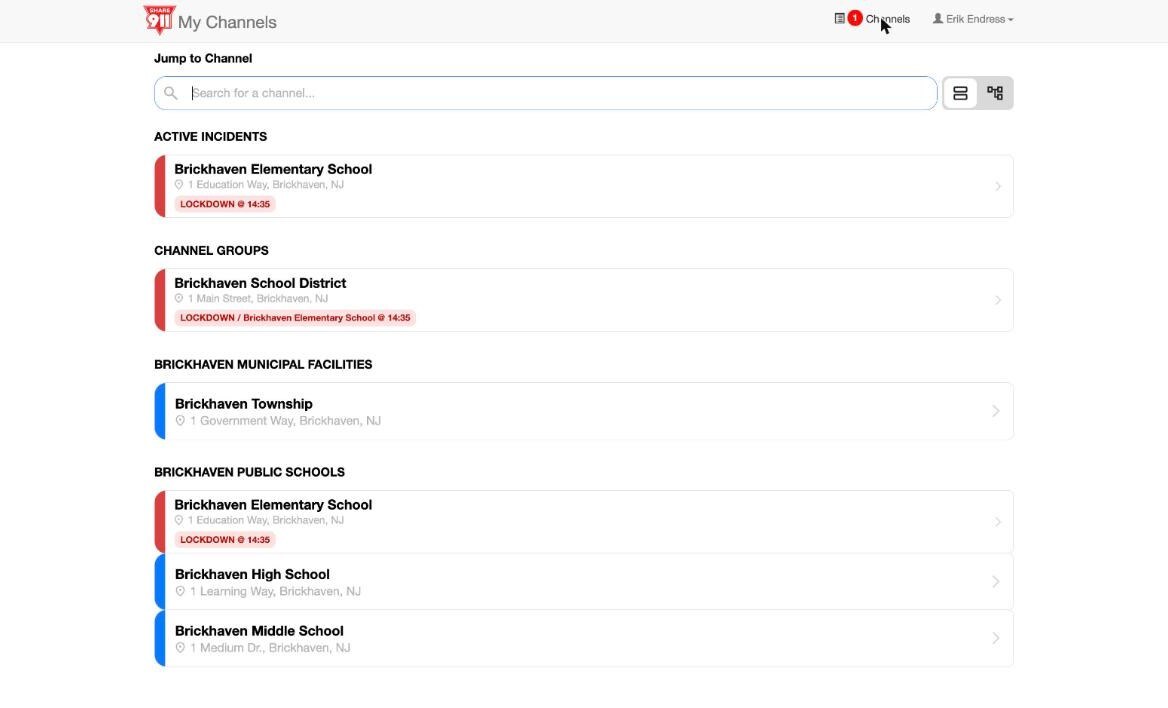
My Channels during an incident: the elementary school has gone red at the top; everything else is still blue.
Open the channel and you're on Live View, the same board the site's own people see. The red banner says what's active and when it started; an orange banner below it carries the latest message. The check-in cards pinned above the counters are what matter on the way in — who, what they saw, which door or room, which grid square, what time. Below them the counters: how many Accounted For, Evacuated, Secure, Off-Site — and how many Not Reported, which is the number nobody has heard from. A Trapped card with a room number is a search assignment before you've parked.
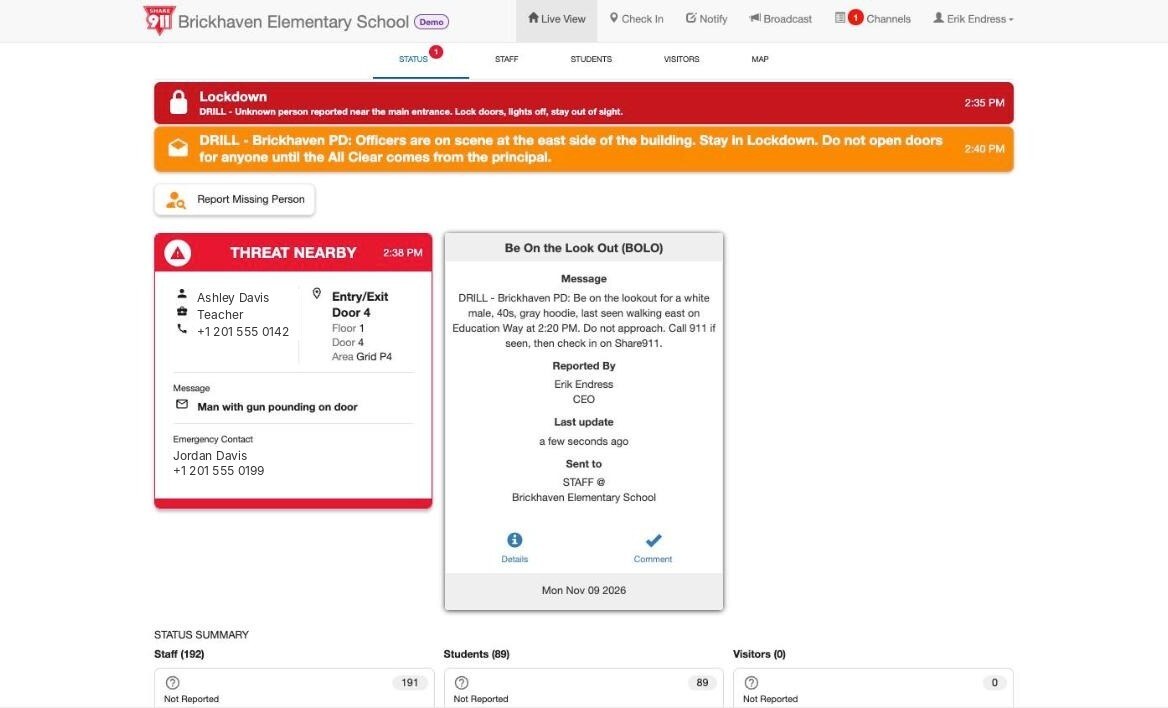
The full picture: alert banner, the PD's message, the Threat Nearby card, a BOLO card, and the counts.
The Staff tab lists every person and their status; the Map tab has the street map and the floor plan.
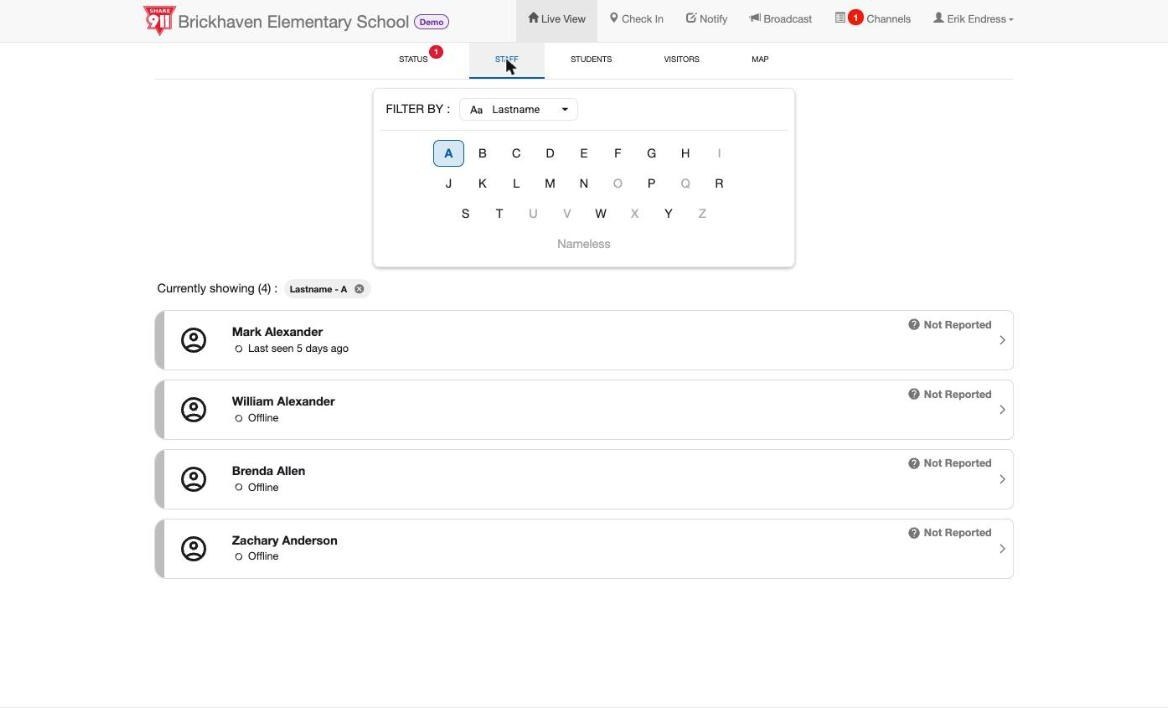
You're done when you can tell someone, from Live View alone, where the last report came from and how many are unaccounted for.
4. On the way in
For the responder in the field. Takeaway: Open the channel before you open the door.
The alert lands on your phone like any push, and the same Lockdown popup appears on a desktop. Open it and you're in the site's channel.
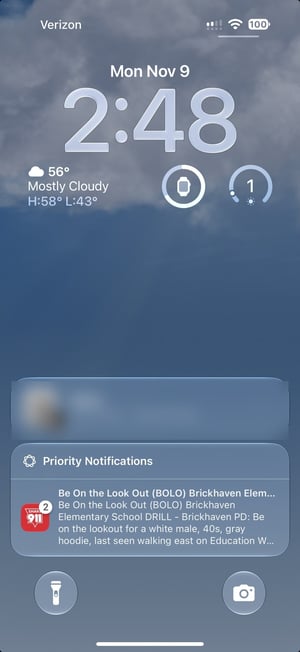
On the lock screen. Tap it and you're in the channel.
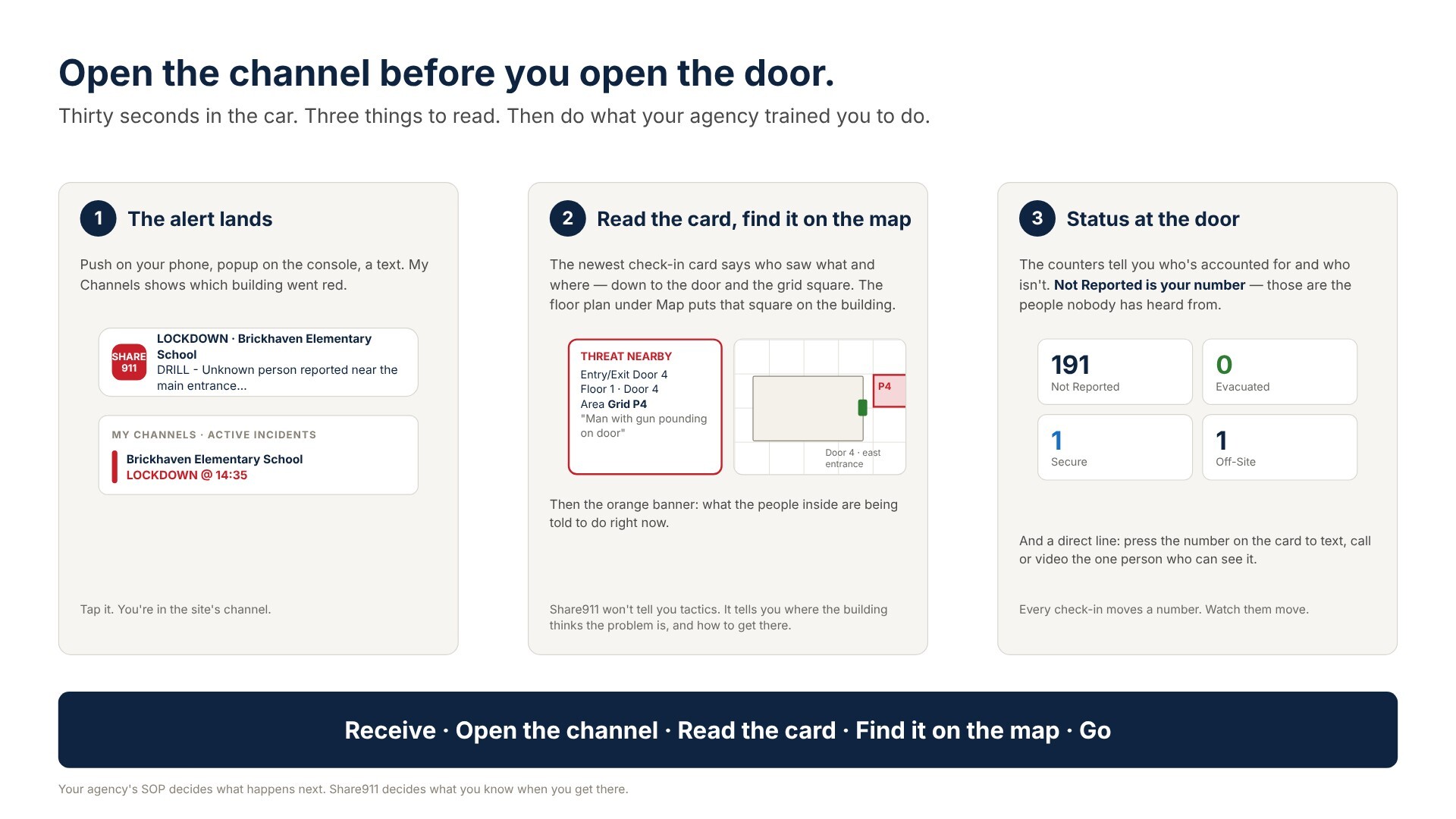
Three things to read in the thirty seconds you have: the newest check-in card (where the problem was last reported — the card gives door, floor and grid square), the floor plan under the Map tab (a CRG-gridded aerial with numbered entrances, so Grid P4 and Door 4 mean something), and the message banner (what the people inside are being told to do).
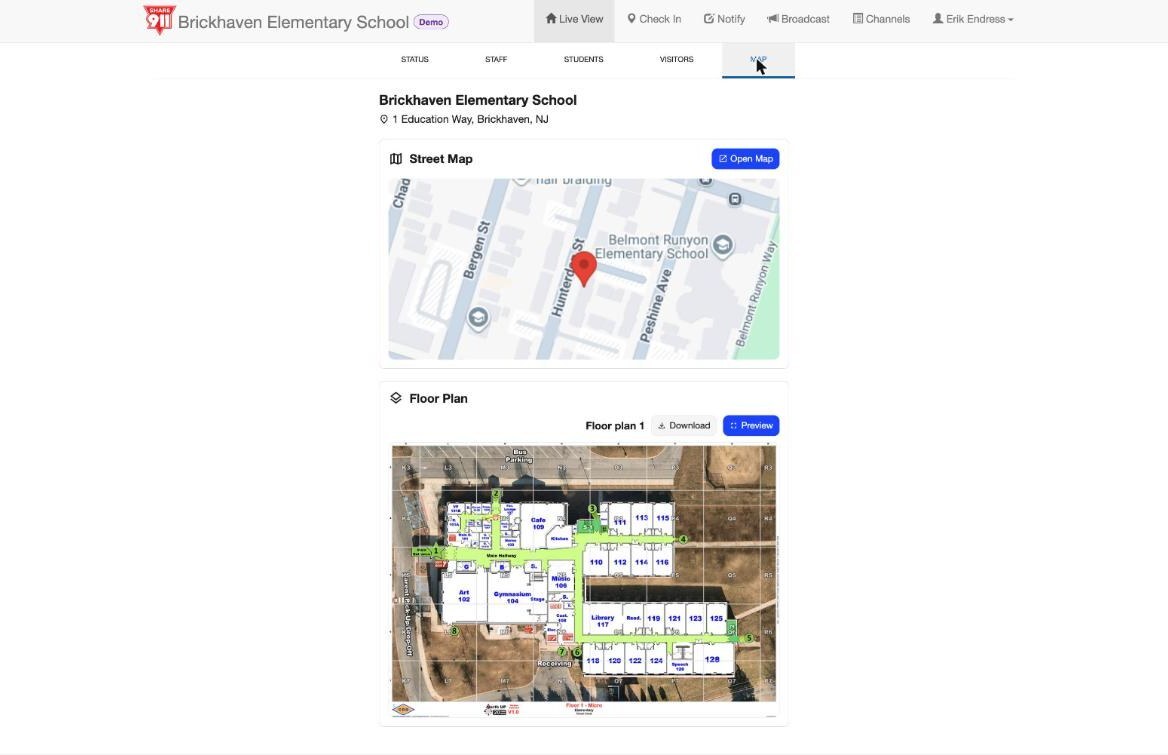
The Map tab: street map on top, floor plan below.
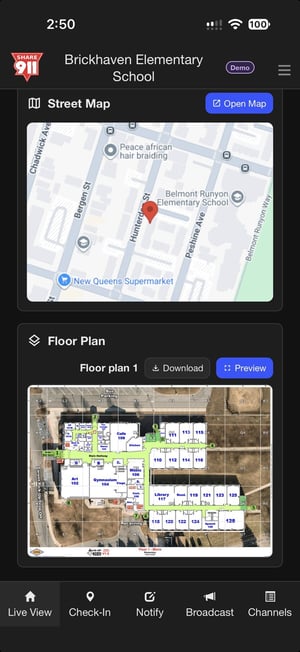
The same map and floor plan on a phone — readable in the car.
Then do what your agency trained you to do. Share911 won't tell you tactics; it tells you where the building thinks the problem is and how to get there.
You're done when you've opened a drill alert and found the floor plan in under a minute.
5. Talking to the people inside
For command and the field. Takeaway: You can talk to everyone inside the building — and everyone who has left it — from wherever you are.
This is the part responders don't expect, and the part that changes the incident. Agency personnel authorized for Broadcast Message can send to every person in the site's channel — all staff, or a group — from a phone in the car or a console across town, and it lands the same way the alert did: push, text, email, desktop, and an orange banner on Live View under the red one. The people in the rooms have been told to lock the door and wait; until now the only voice they heard after that was rumor. Now the commander can tell them what's actually happening:
- "Officers are on scene. Entry teams are moving from the east entrance along the main hallway. Stay in Lockdown, stay away from the door."
- "Do not use the north stairwell. Rooms 110–116, hold in place; we'll come to you."
- "Evacuate now through the Receiving doors to the bus loop. Do not go to the parking lot."
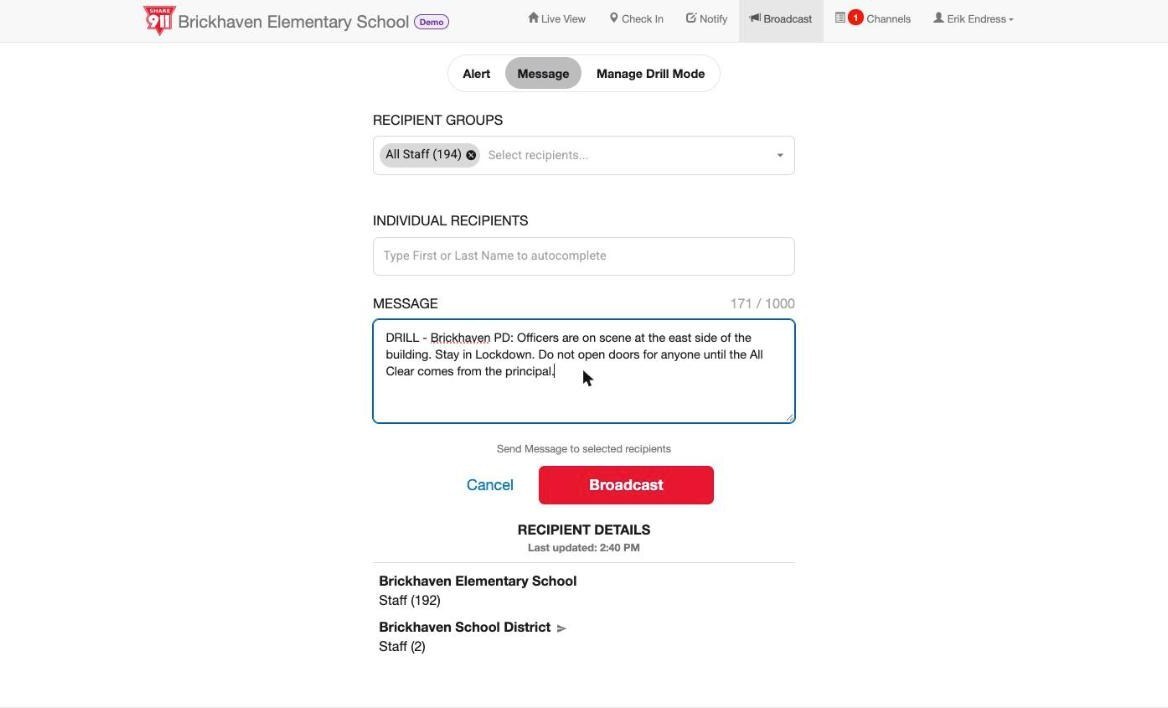
Composing a message from the agency side to All Staff. The Individual Recipients field sends to one person.
How it lands inside: the orange banner under the alert, on every screen in the building.
In an evacuation the channel follows people out: everyone who has left the building is still on it, so the same message reaches the evacuees in the lot — "Move to the far side of the field. Buses are 10 minutes out. Stay with your group" — and the next one, and the one after that, moment by moment, without a bullhorn.
One person, not everyone. Broadcast Message also takes individual recipients — type a name, and the message goes only to them. And the check-in card itself is a direct line: the person who reported Threat Nearby put their mobile number on it. On a phone, press and hold that number and you can text them, call them, or in many cases FaceTime them — a responder talking to the one person who can see the problem, with video, before the first unit is through the door. That is a capability no radio gives you.
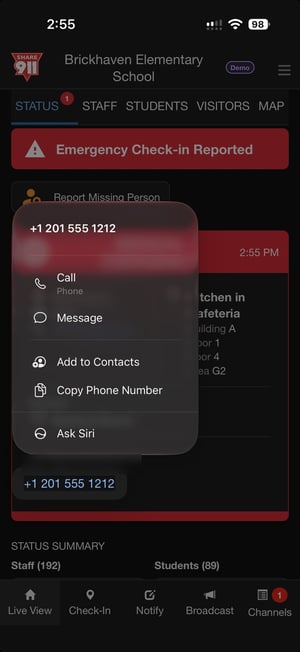
Press and hold the number on the card: Call or Message the person who reported it.
Notify is the quieter channel for things that aren't the incident itself: a BOLO with a description, a weather or utility condition, a transit disruption. It shows up as a card on Live View and on phones, and is not sent to 911.
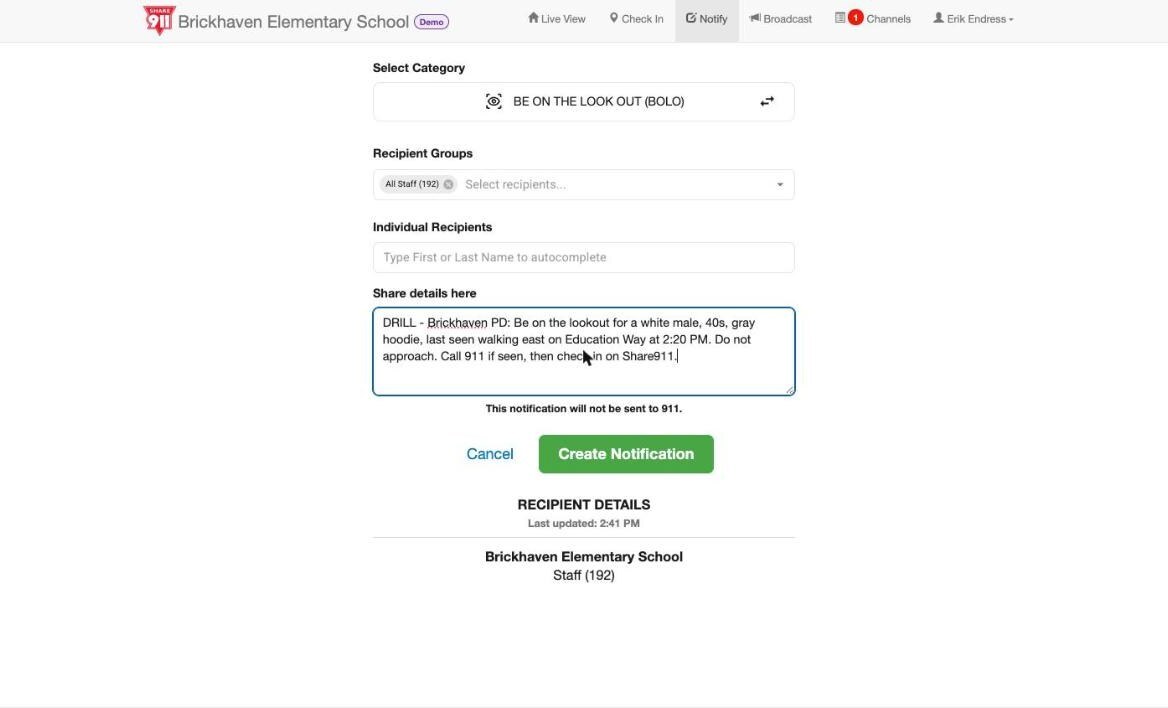
Coordinate the All Clear with the site: in most places the site's administrator sends it, you tell them when — and agency personnel authorized for Broadcast Alert can send it themselves if that's how the agency and site have agreed to work. Issuing an All Clear.
You're done when you know who at the site holds the All Clear and how you reach them.
6. After the incident
For command and dispatch. Takeaway: Everything that happened is already written down.
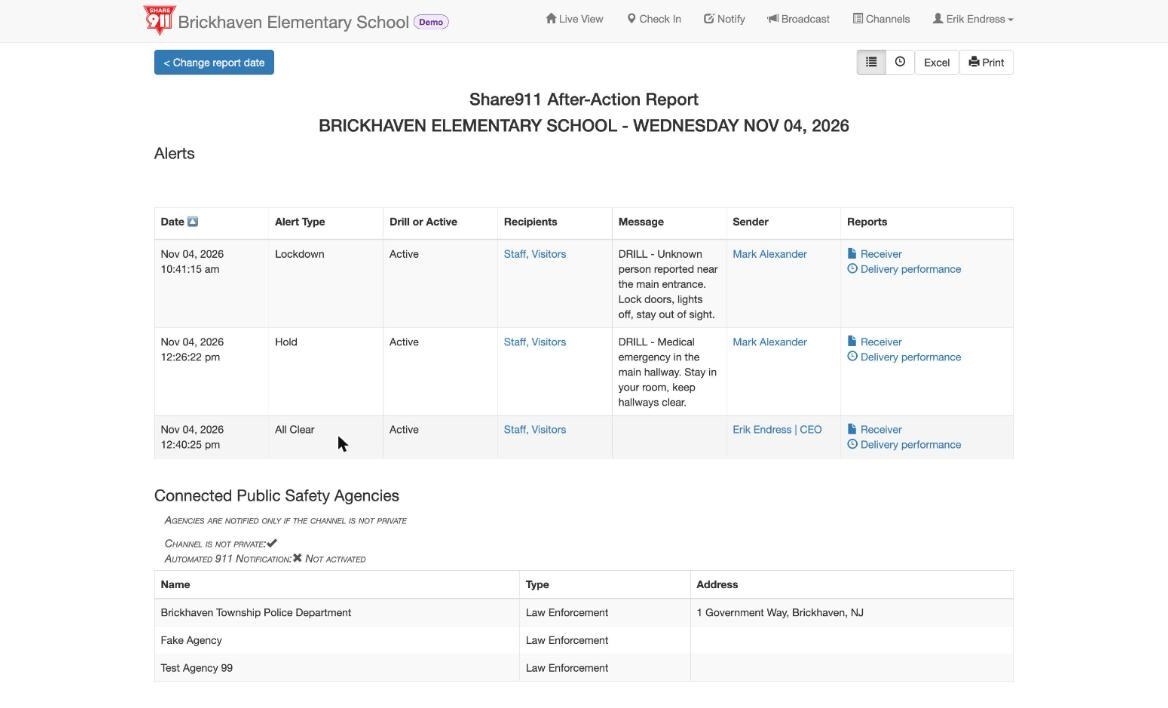
Agency personnel have access to the After-Action Report for any date: every alert and message in order with sender, recipients, text and time; a Connected Public Safety Agencies section listing which agencies were notified; an Accountability Summary of every check-in with time, name, status and location; and the Not Reported list. Export to Excel or print.
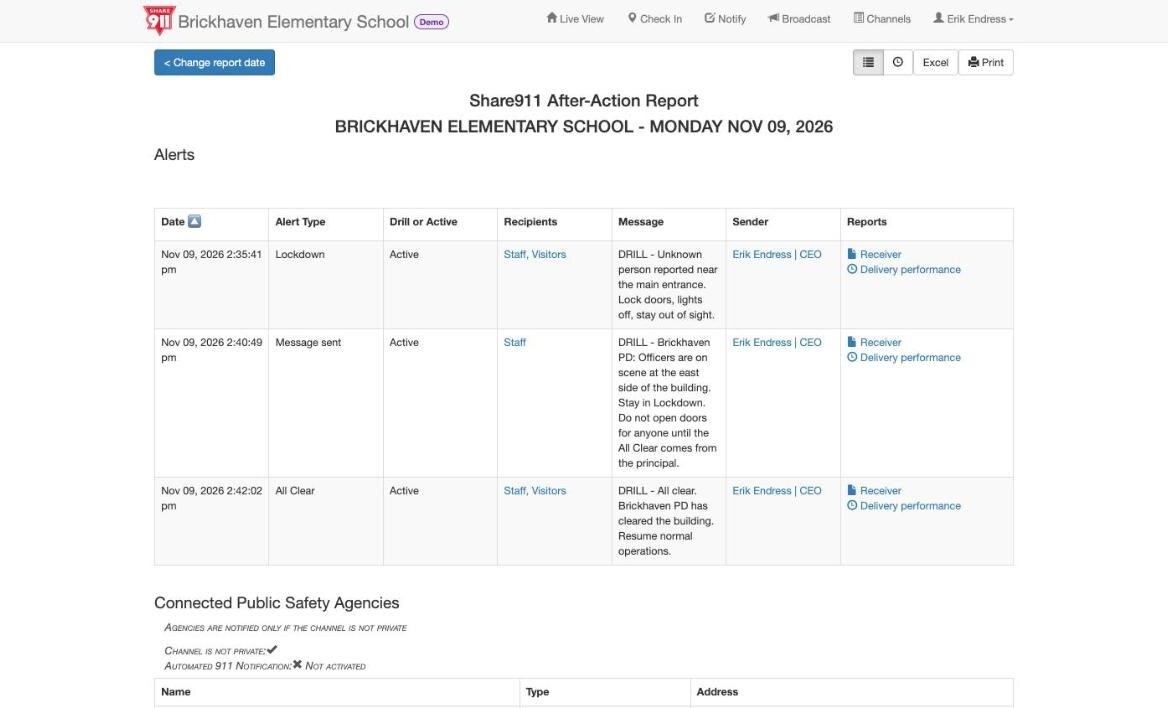
Today's drill as the report sees it: Lockdown, the PD's message, All Clear — with times.
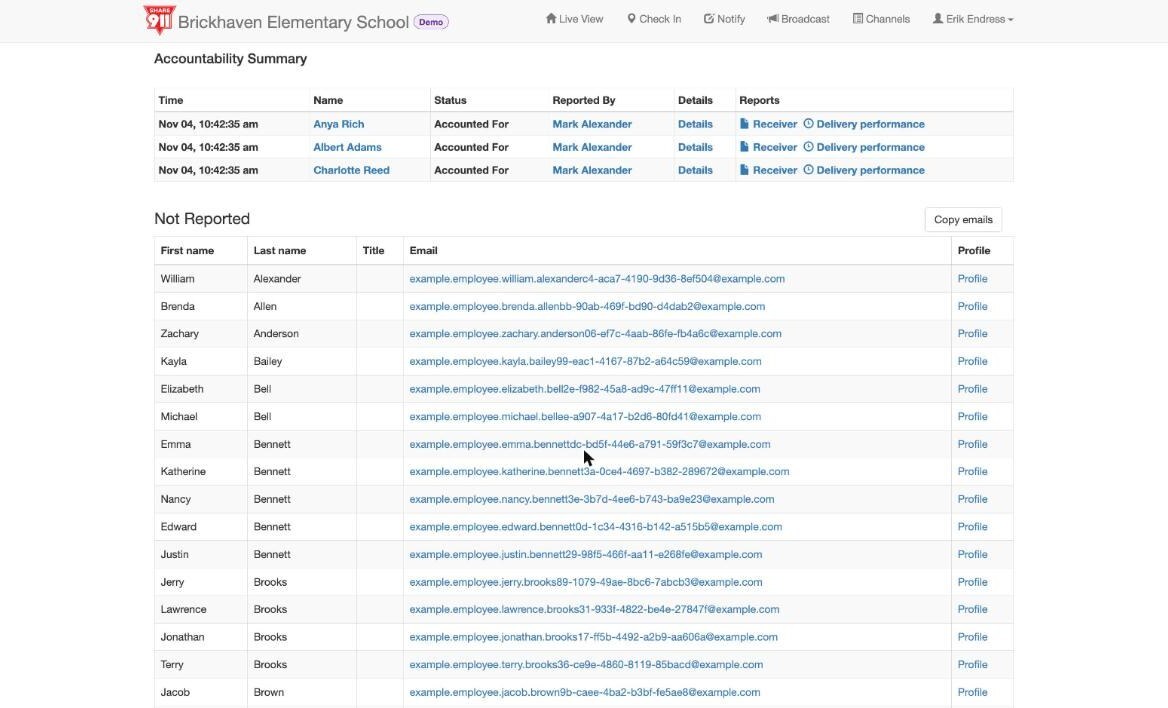
It is the forensic record for the review, the drill critique and the next tabletop — and it's the same report the site sees, so nobody argues about the timeline. Organizational Reports give the longer view across dates. After-Action Report — reviewing an incident (video).
You're done when you've opened one AAR from a drill.
7. Getting your agency set up
For the chief or communications director. Takeaway: It's free, it's a form, and your people set themselves up like everyone else.
An agency on Share911 is a record with an ORI number, agency type, address, phone, the email domains your personnel use, and the zip codes you cover — "Personnel will receive alerts from all schools located within these zip codes." Ask OnScene to create it, or create it at share911.com/agency.
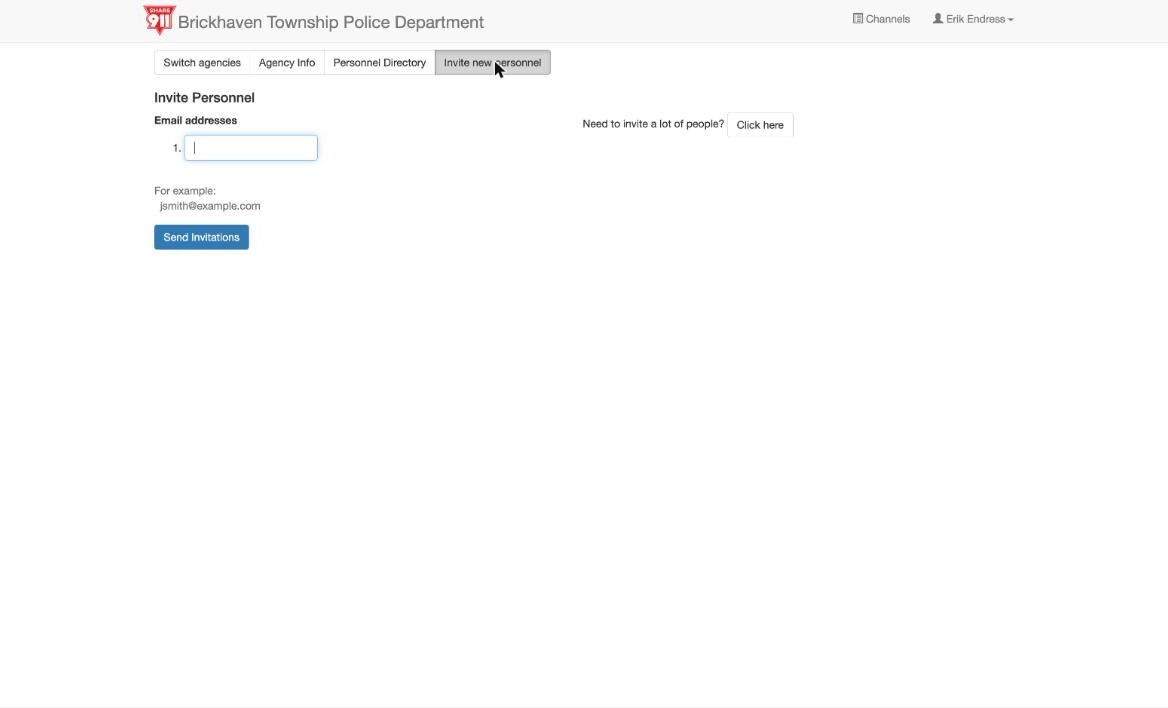
Then invite personnel by email (one at a time or a bulk list); each person creates an account and sets up their own phone the same way every Share911 user does — app, mobile number, Emergency Bypass and Do Not Disturb exceptions, test push. Make sure you hear a Share911 alert on your mobile device covers it.
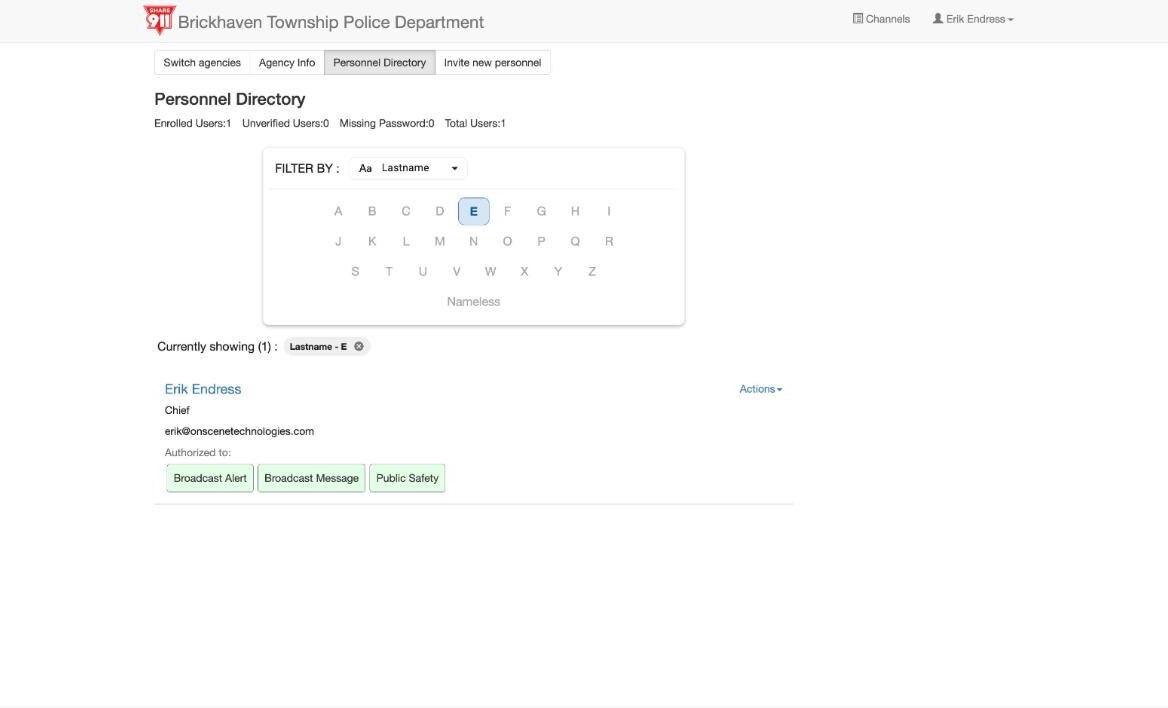
The Personnel Directory shows who's enrolled and what each is authorized to do: Broadcast Alert, Broadcast Message, Public Safety.
Dispatch gets Live View on a console by signing in on a browser and leaving My Channels open. Drill alerts arrive by default; turn them off per channel in Channel Preferences if the console shouldn't light up for every school drill.
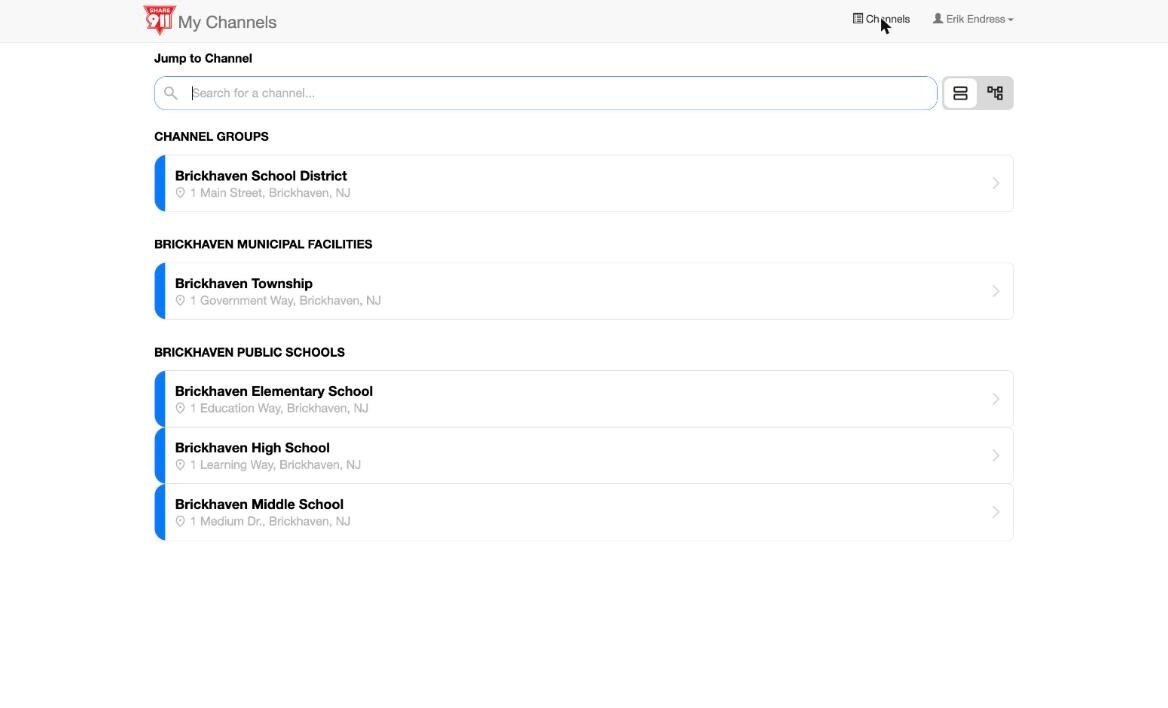
My Channels at rest — what a dispatch console looks like on a normal day.
You're done when the test push lands on a supervisor's phone and dispatch has My Channels open on a console.
8. Common questions
Does this replace the 911 call?
No. The central station calls your dispatch center every time; being connected adds the live picture.
What does it cost?
Nothing for public safety agencies.
Which sites can we see?
Every channel at an address in the zip codes on your agency record.
Can we see a site when nothing's happening?
Yes — My Channels and Live View are always there; the status bar is blue at All Clear.
Do we get drills?
Yes, unless you turn drill alerts off per channel.
Can we send to the building?
Yes — Broadcast Message and Notify, if your account is authorized. Broadcast Alert, including the All Clear, if your agency and the site have agreed to work that way.
Who do we call when something looks wrong?
The site's channel manager; the After-Action Report shows who sent what. For the platform itself, open a ticket and choose the public safety / first responder role.
Three things to remember
- Dispatch tells you where. Share911 shows you what's happening inside.
- Open the channel before you open the door.
- Not Reported is your number.
Know before you need it. Which sites are in your zip codes, who manages each site's channel and holds the All Clear, and where the floor plan is in the app. If you can't answer one of these, find out today — not during an alert.