![S911logo350350-2.png]](https://help.getshare911.com/hs-fs/hubfs/S911logo350350-2.png?width=40&height=40&name=S911logo350350-2.png)
Calling 911 brings help. Share911 tells everyone nearby and involved what's happening so you can act before help arrives. This guide takes about 15 minutes. Screens shown are from a demo channel; your workplace's alert buttons, locations and settings may differ.
1. What Share911 is
The one thing to remember: Calling 911 brings help. Share911 tells everyone nearby and involved what's happening so you can act before help arrives.
Something goes wrong at work. Two things need to happen, and they need to happen at the same time. Someone calls 911 so help is on the way. And everyone else in the building needs to know — right now — what is happening and what to do.
The first part has worked for fifty years. The second part has never had a system. When you call 911, the dispatcher learns what's going on. The dispatcher cannot tell the two hundred people down the hall. They find out by rumor, by a PA announcement if someone gets to the microphone, or not at all. Minutes pass. People make decisions without information: a teacher opens a door, a nurse walks toward the sound, a receptionist buzzes someone in.
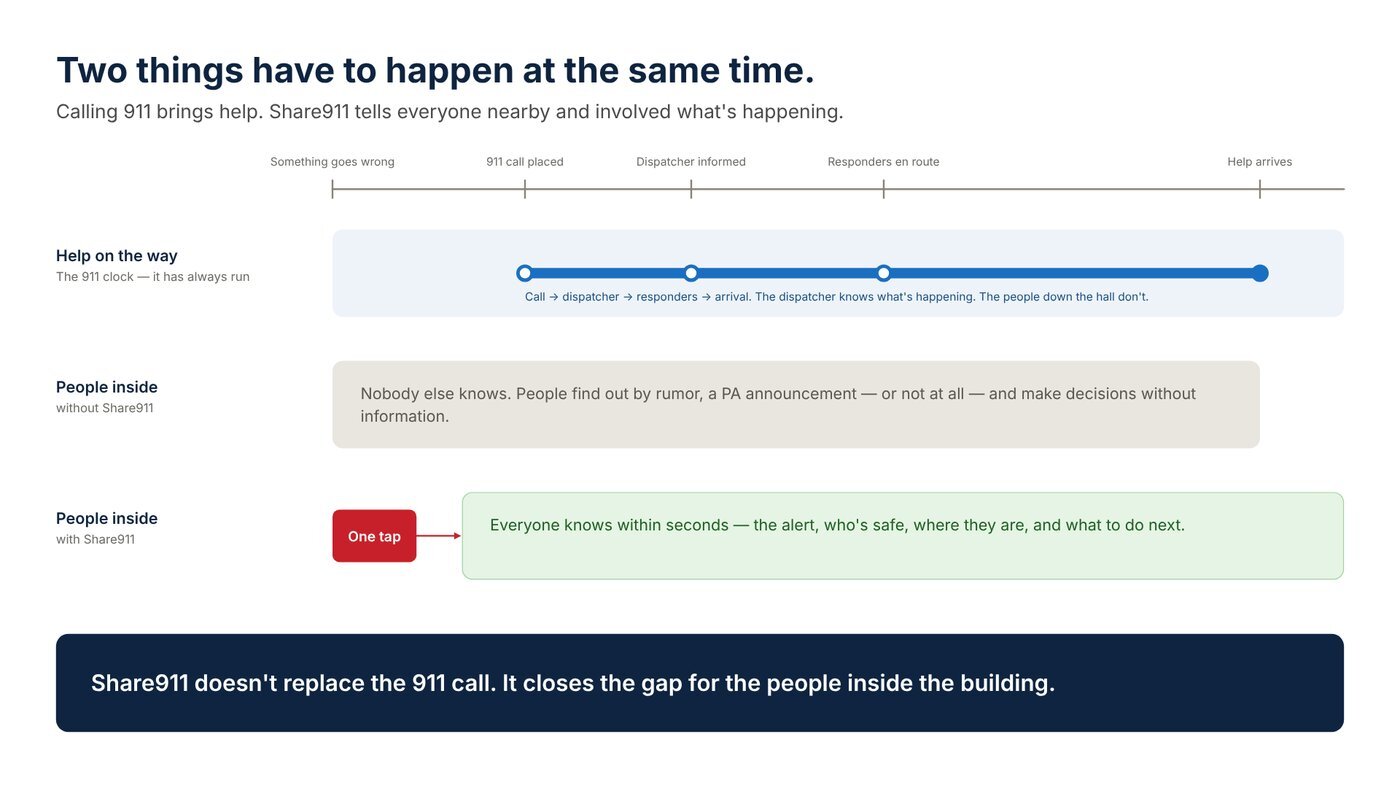
Share911 is the second part. One person taps a button and every person in your organization gets the alert on their phone, their computer and by text within seconds. Everyone can see who has checked in safe, who hasn't been heard from, and what the latest update is. You are no longer guessing.
It is not a replacement for 911. It is what happens alongside it. And it is not a tracking app — it only knows where you are when you tell it, by checking in.
You're done with this chapter when you can say in one sentence what Share911 does that calling 911 doesn't.
2. Five-minute setup
Why this matters: Share911 only works if the alert can reach you. Finish this list once and send yourself a test.
Your organization has added you to its Share911 channel. The invite in your inbox is the starting point.
- Create your account from the invite, or sign in if you already have one from another workplace. How
- Install the mobile app and sign in. Allow notifications when it asks. How
- Confirm your mobile number. You'll get a welcome text from short code 48502 — that proves texts can reach you. Save 48502 as a contact named Share911; the next steps depend on it.
- Check your notification preferences. In your profile → Notification Preferences, make sure Email, SMS and Push Notifications are all checked.
- Make sure you'll hear it when your phone is silenced. Follow Make sure you hear a Share911 alert on your mobile device. On iPhone that means Emergency Bypass on the Share911 contact, and the Share911 app and contact allowed through every Focus you use. On Android, a starred contact and Do Not Disturb overrides.
- Set up your work computer. Install the desktop app or allow desktop popups in your browser, and click "Test desktop popup" once so the browser lets the alarm sound play. How
- Send yourself a test. Profile → My Devices → Send Test Push Notification.
- Add an emergency contact in Contact Info — who your employer should call if you're hurt at work.
- Wear a watch? Mirror your phone's Share911 notifications to it and turn on prominent haptics, so alerts reach your wrist when the phone's in a bag or drawer.
You're done when the test push lands on your lock screen and you've seen the welcome text.
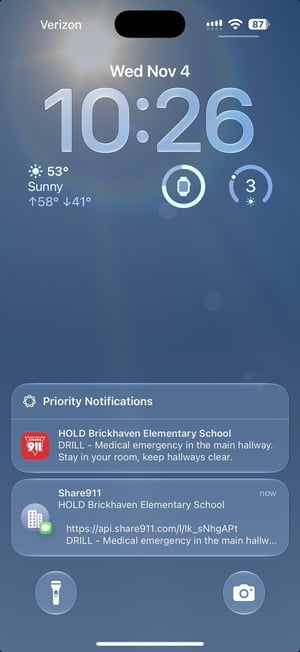
What done looks like: the push and the text, both on the lock screen.
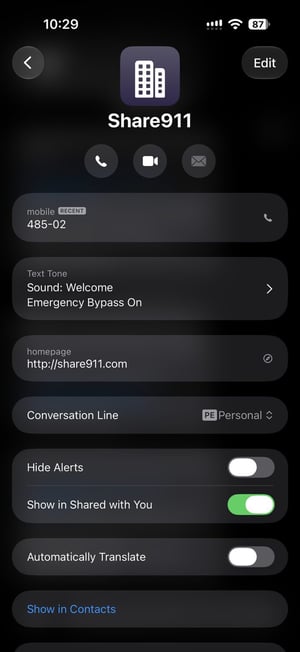
The Share911 contact with Emergency Bypass on.
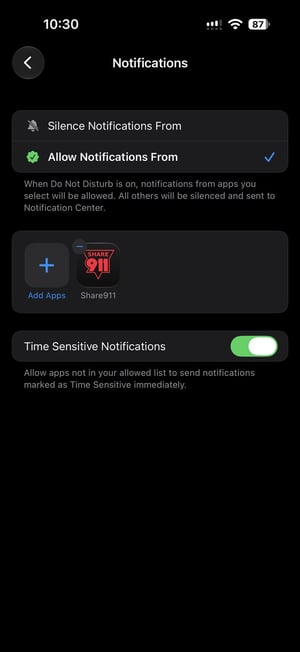
Share911 allowed through Do Not Disturb.
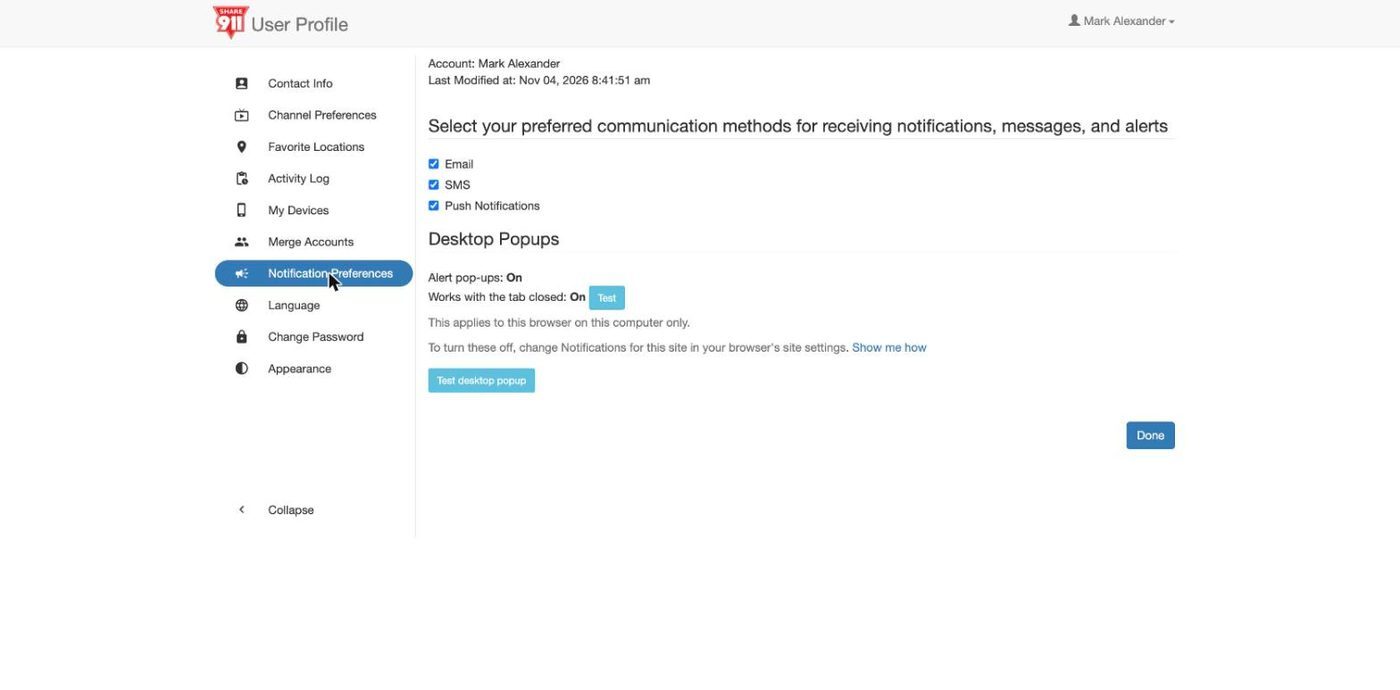
Notification Preferences: all three checked, and the desktop popup test button.
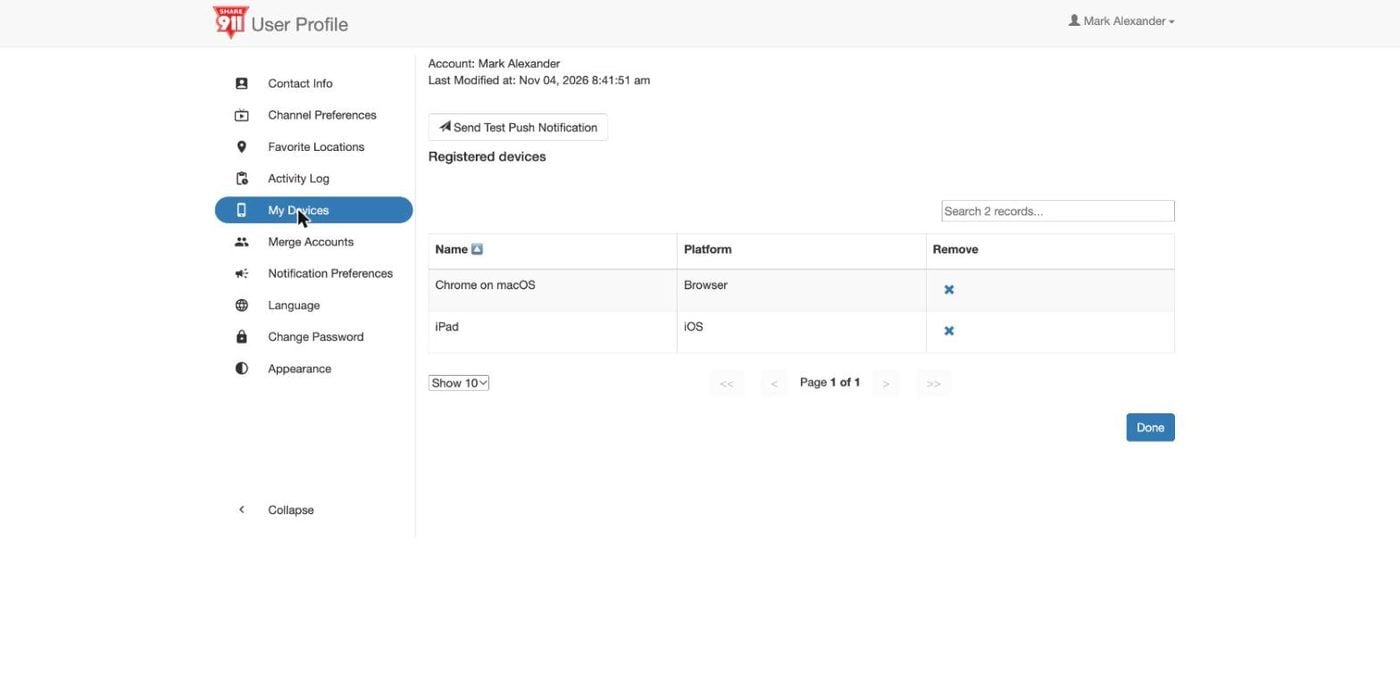
My Devices: every phone and browser registered to you, and the test button.
3. Reading the screen
The short version: Three screens matter to you: Broadcast, Live View and Check In. Here is what each one is telling you.
Broadcast is the row of alert buttons. Each one is a response action and the color tells you the type at a glance. Many organizations use the Standard Response Protocol set shown here. Nearly every organization lets employees send these, and everyone receives them.
- HOLD — Stay in your room, clear the halls.
- SECURE — Threat outside. Lock outside doors, business as usual inside.
- LOCKDOWN — Threat inside. Lock, lights off, out of sight.
- EVACUATE — Move to the named location.
- SHELTER — Hazard. Use the named safety strategy.
- ALL CLEAR — It's over. Sent by an administrator.
Alert types are customizable, so your workplace's alerts may vary from the ones shown here.
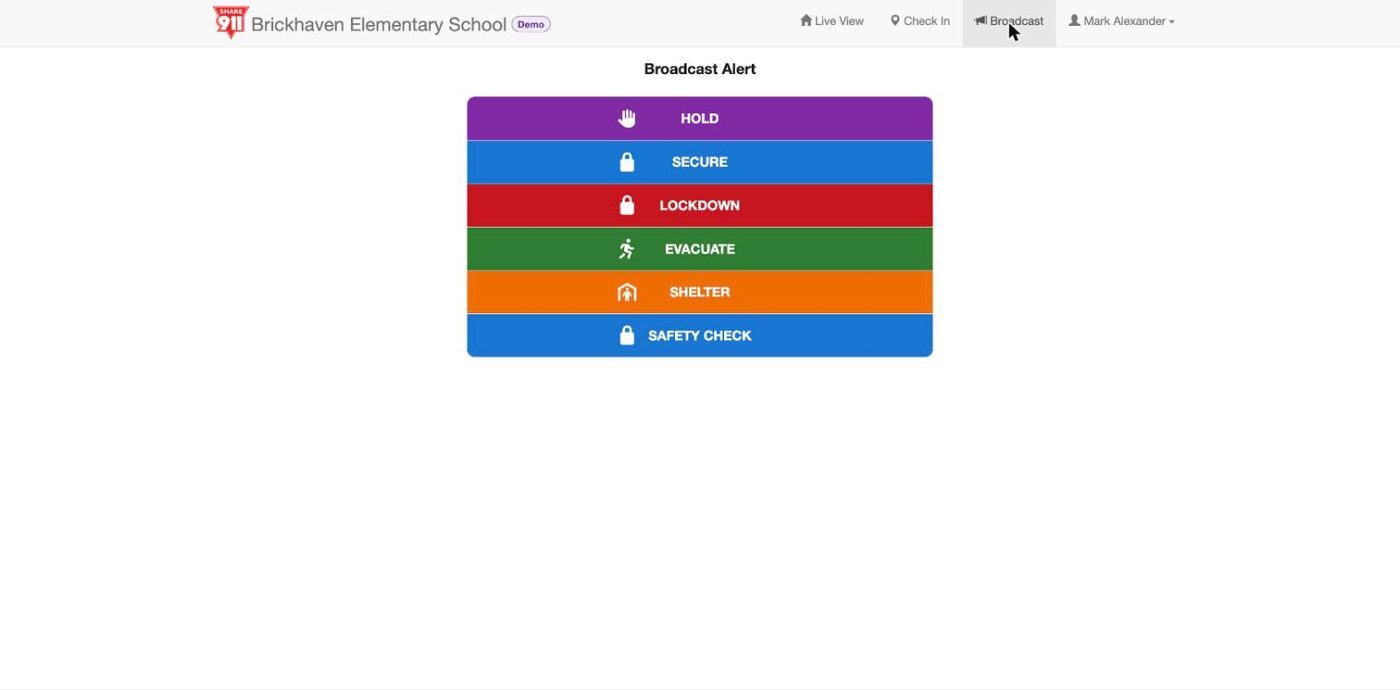
The Broadcast screen on a demo channel. Your workplace's set may differ — if you're not sure which buttons it uses or what each one means in your building, ask your channel manager today, not during an alert.
Live View is the shared picture. At the top it shows the current status of the whole channel — All Clear, or the active alert. Below it, counts of staff (and students or visitors, where that applies) by status: Not Reported, Accounted For, Evacuated, Secure, Off-Site. In an incident this is where you see whether the people around you are safe, and where the people managing the response see who still needs to be found.
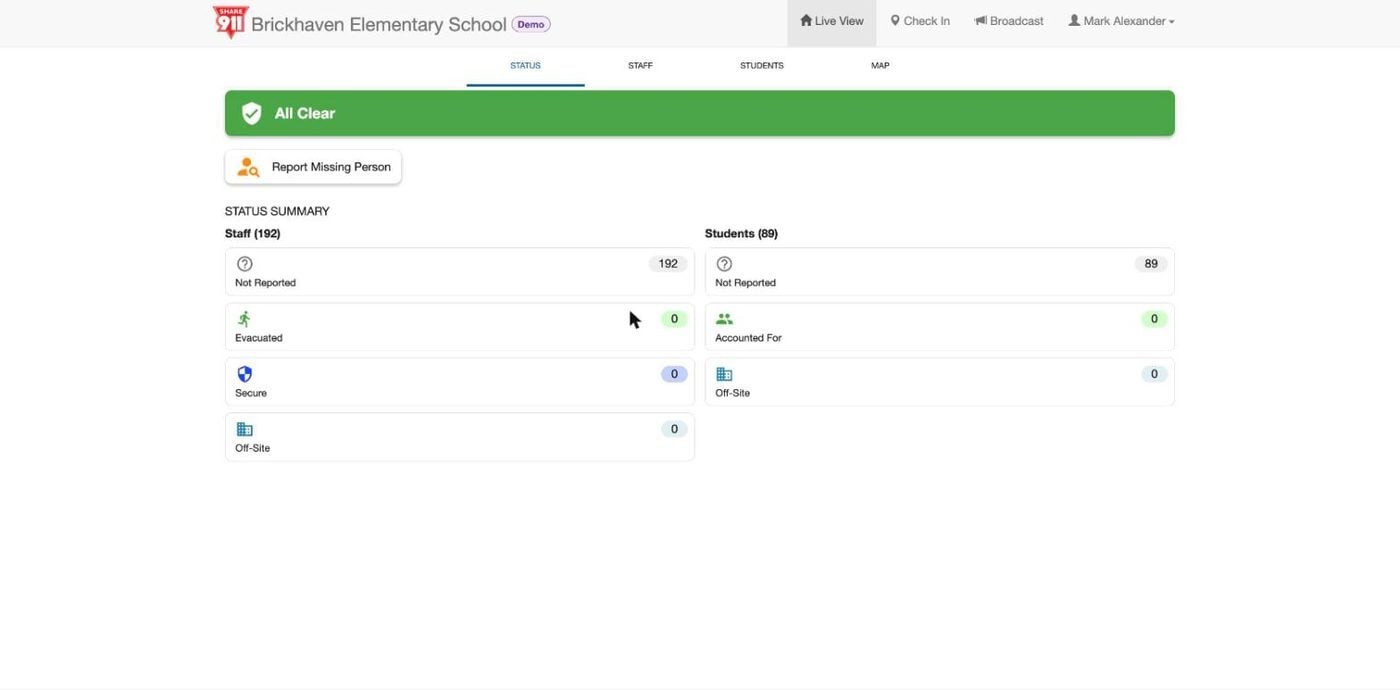
Live View at rest: green banner, everyone Not Reported because nothing is happening.
Check In is how you put yourself on that picture, and it does two different jobs. I'm safe tells your coworkers you're accounted for. The other options report what you see. Four of them are emergency check-ins — Threat Nearby, Fire/Smoke Condition, Trapped and Medical Emergency. An emergency check-in goes to every member of your channel and appears on Live View, goes directly to responders who are on the platform, and a live operator calls 911 on your behalf. Security Needed is different: it is a request for security or assistance, it goes only to your organization's security team, and nobody calls 911. Use it when you need help, not when there's an emergency. The options can change with the alert that's active.
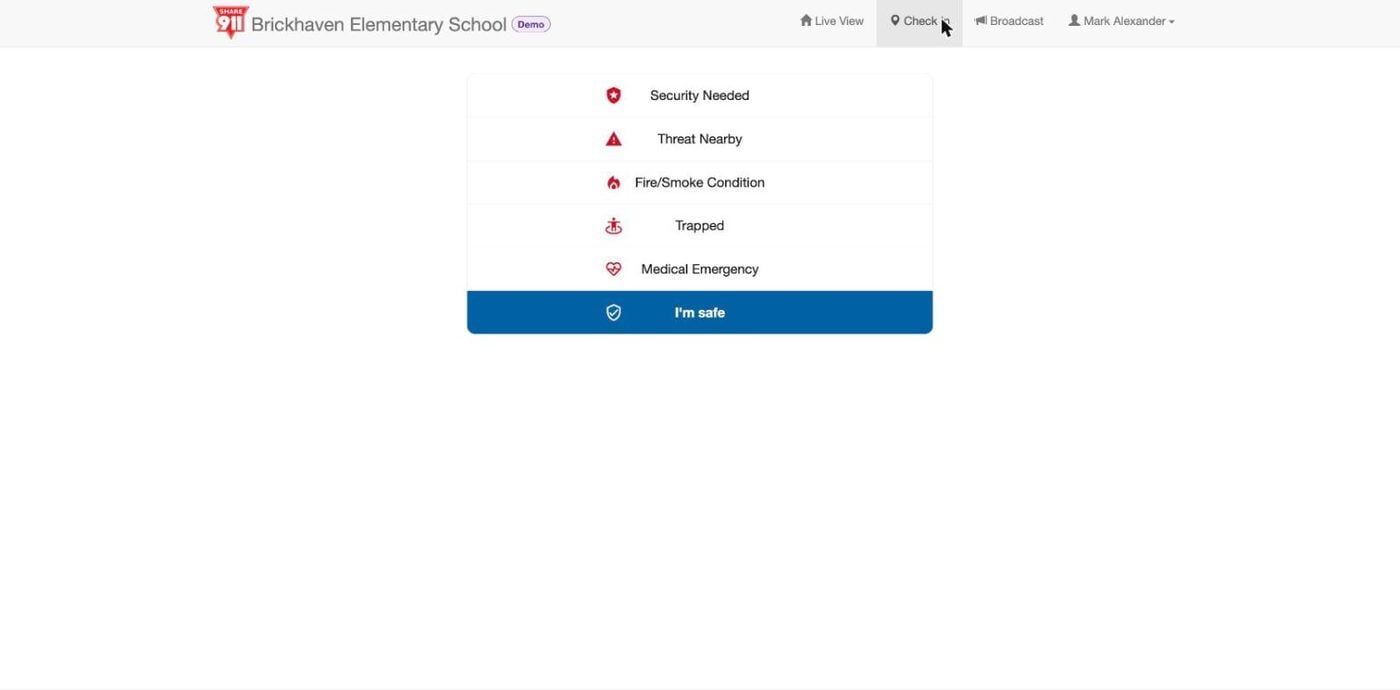
Check In on desktop. On the phone it's the middle tab at the bottom.
You may also receive Notify messages — things that aren't emergencies but that everyone needs to know: weather, a transit disruption, a utility problem, a be-on-the-lookout. You'll get these more often than alerts.
You're done when you can look at Live View and say what "Not Reported" means.
4. When an alert reaches you
The sequence: Read it, act on it, check in, then watch the channel. Don't call the office to ask what's happening — the channel is the answer.
An alert arrives everywhere at once: a push on your phone, a text, an email, a popup on your computer, and in some buildings on the screens and speakers. It will cut through silent mode if you completed setup.
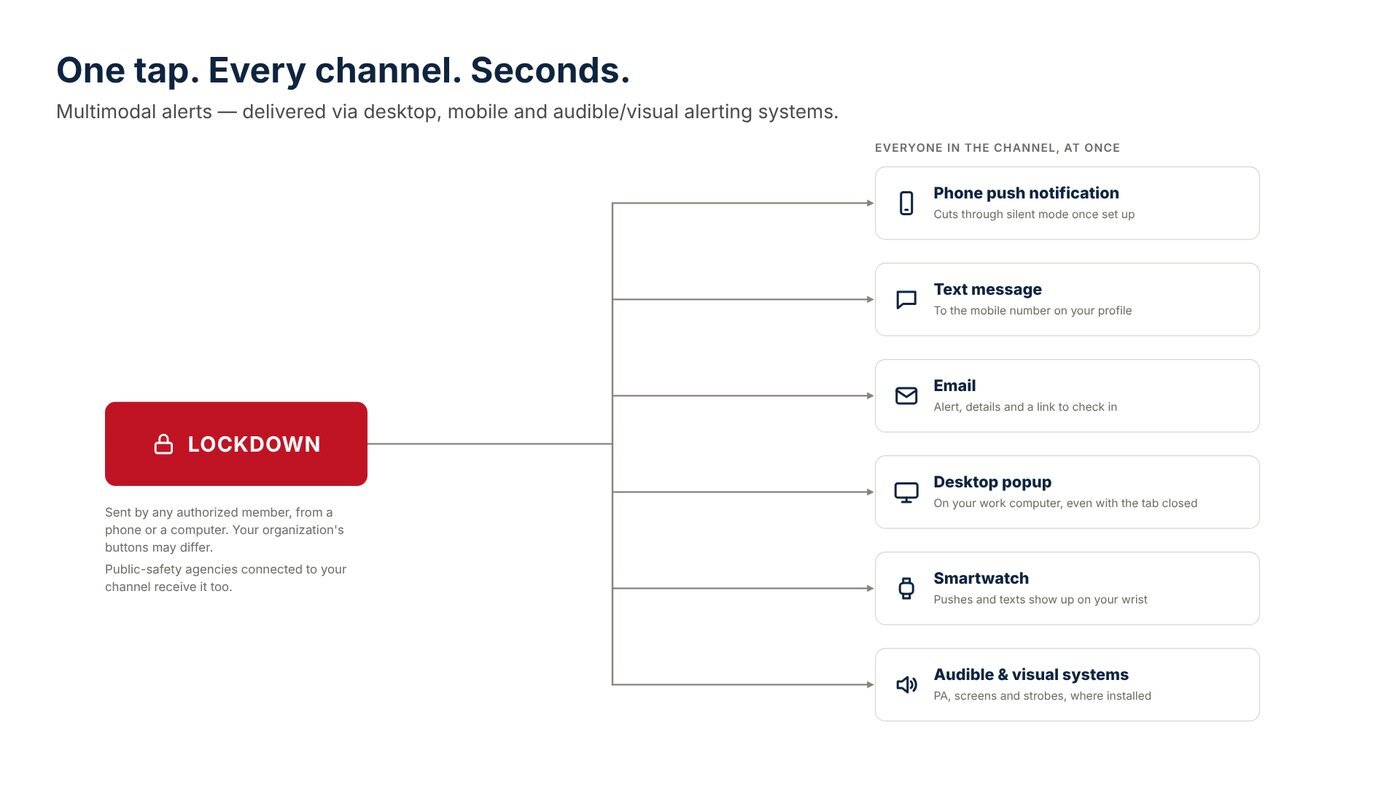
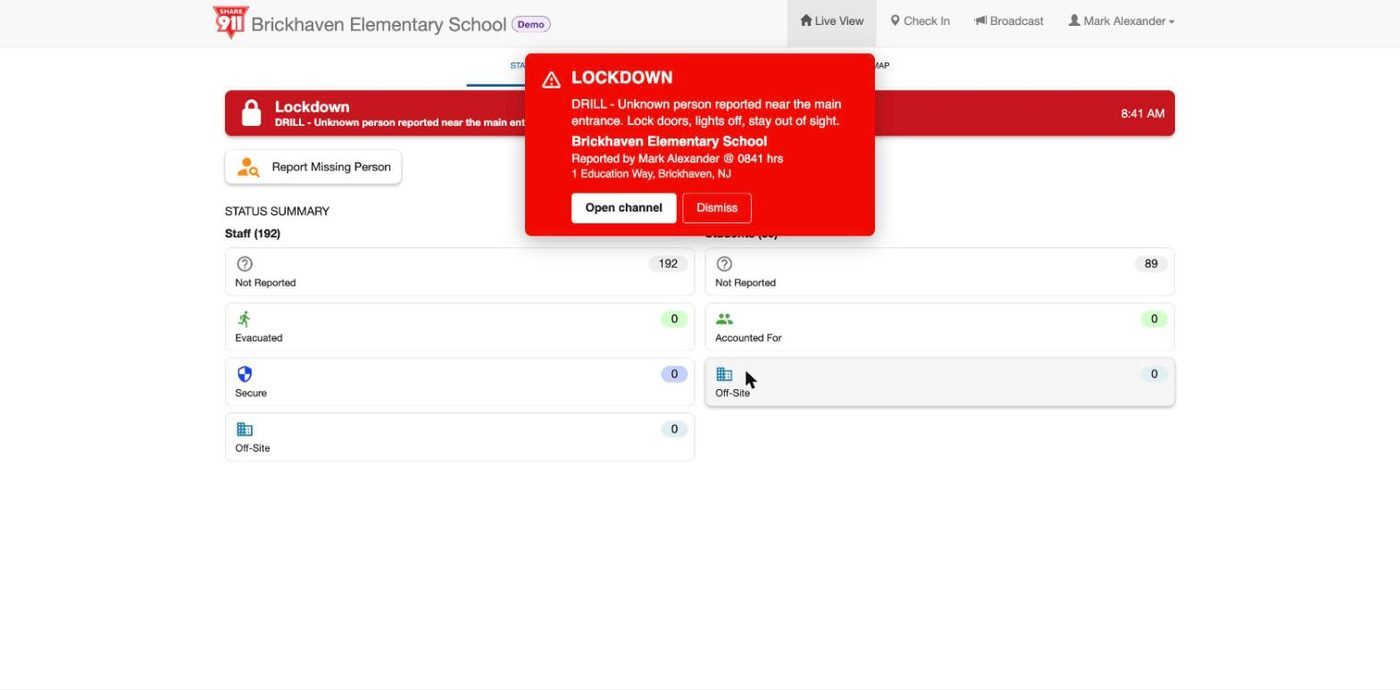
What it looks like on a work computer: the alert pops over whatever you're doing, and Live View turns red.
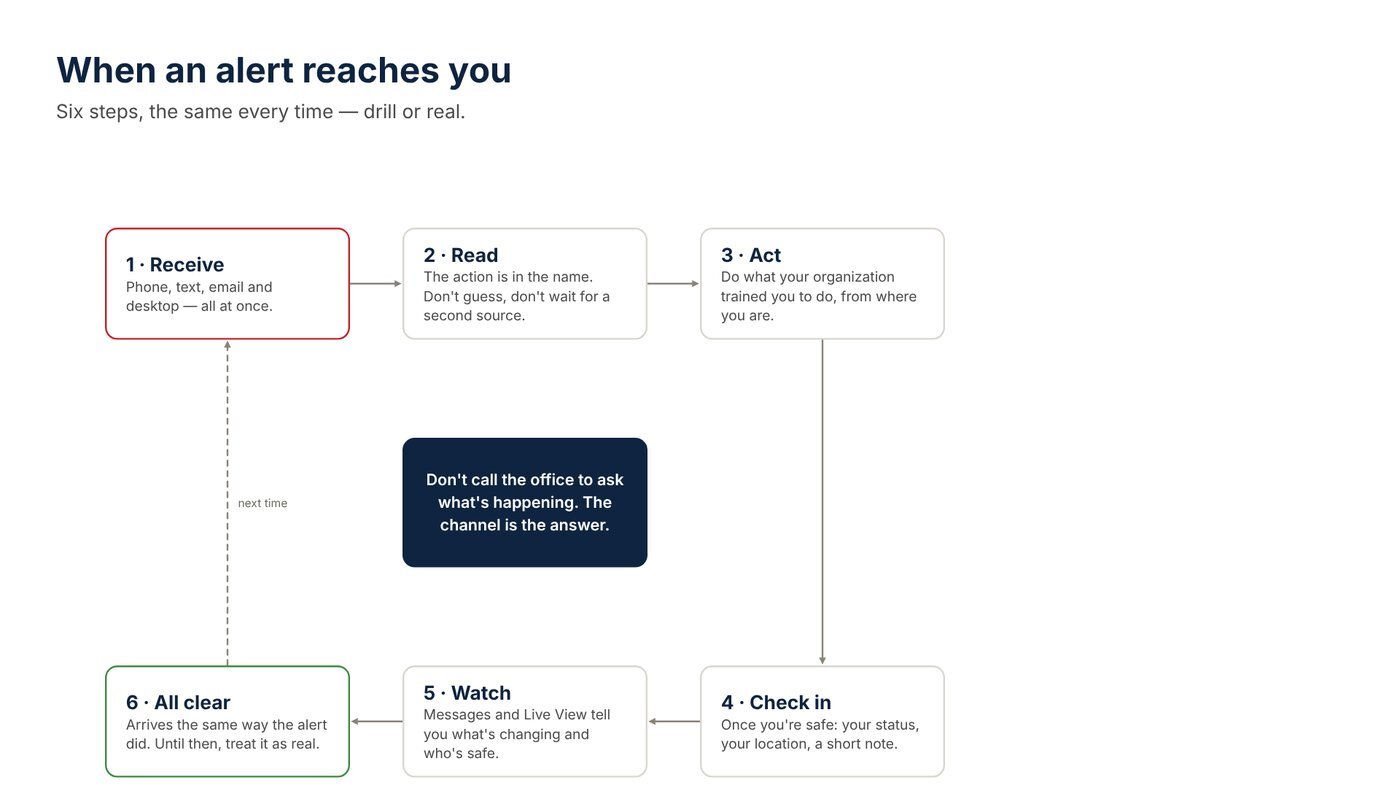
- Receive. Phone, text, email and desktop — all at once.
- Read. The action is in the name. Don't guess, don't wait for a second source.
- Act. Do what your organization trained you to do, from where you are.
- Check in. Once you're safe: your status, your location, a short note.
- Watch. Messages and Live View tell you what's changing and who's safe.
- All clear. Arrives the same way the alert did. Until then, treat it as real.
Don't call the office to ask what's happening. The channel is the answer.
The reason to check in is not paperwork. Every check-in moves a number on Live View, and that number is what tells the people managing the response — and arriving responders — where to go first.
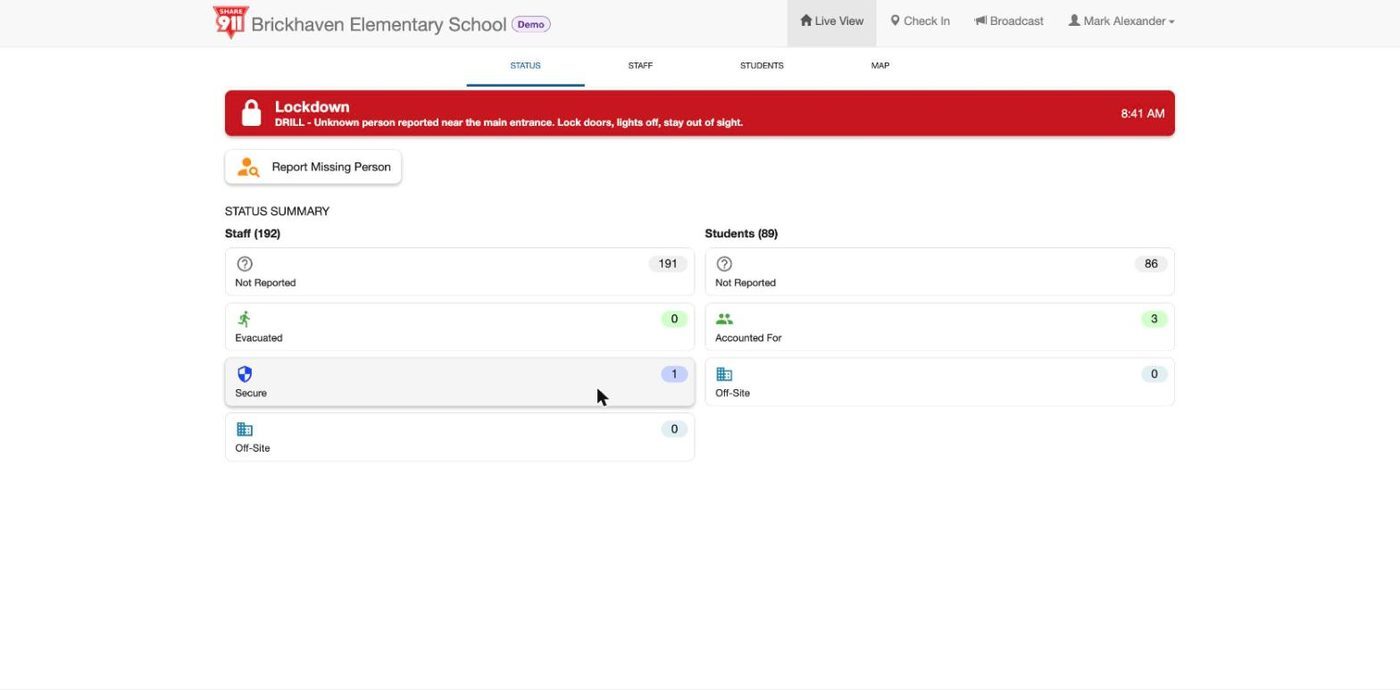
During a drill: one check-in and three students accounted for, and the numbers have already moved.
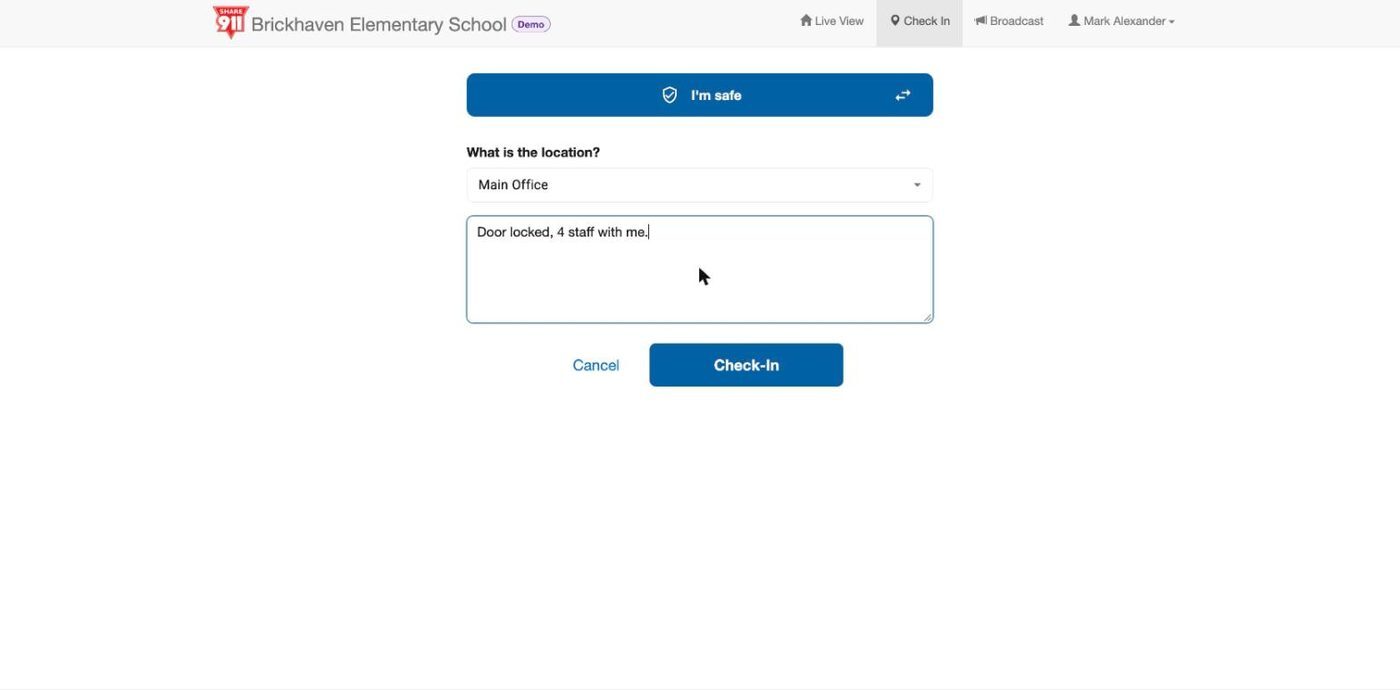
Checking in: pick a location, add a note if there's something others need to know.
Your situation can change, so your status can too. Check in again whenever it does — you were safe, now you smell smoke; you were in the office, now you've evacuated. Each new check-in replaces your last one on Live View, so the picture everyone sees is always your current state. After a check-in you may see a short accountability form (missing, accounted for, absent); fill it in if you know, skip it if nobody applies.
If you're off-site when an alert comes in, check in as Off-Site so nobody spends time looking for you. If you're in the parking lot or on the grounds, follow the alert's action from where you are and check in with your location. If you think you got an alert by mistake, treat it as real until All Clear.
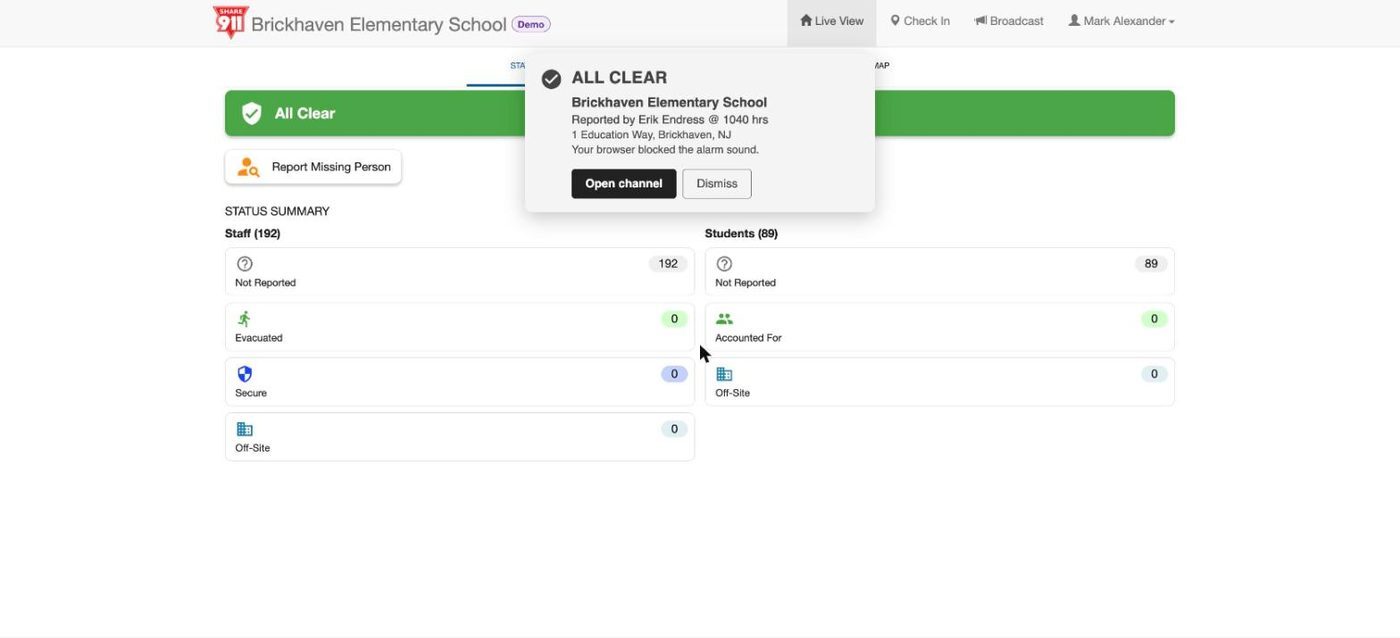
All Clear arrives the same way the alert did, and Live View goes back to green.
You're done when you know where the Check In button is on your phone without looking.
5. When you see something
Why you matter: You are the sensor. An emergency check-in reaches the people who can act in seconds, silently, without a phone call.
Most incidents start with one person noticing something: smoke, a stranger who shouldn't be there, a coworker who collapsed, a door that won't open. Share911 lets you report it silently, from wherever you are, with one tap — and the report goes to everyone who needs it at once.
Open Check In and choose what you see, then your location and a short note. Threat Nearby, Fire/Smoke Condition, Trapped and Medical Emergency are emergency check-ins. One tap does three things at once: every coworker in your channel sees it on Live View so the people around you can act; responders who are on the platform get it directly; and a live operator calls 911 for you. Security Needed is the exception: it is a request for security or assistance, it goes only to your organization's security team, and no one calls 911. If it's an emergency, don't choose Security Needed.
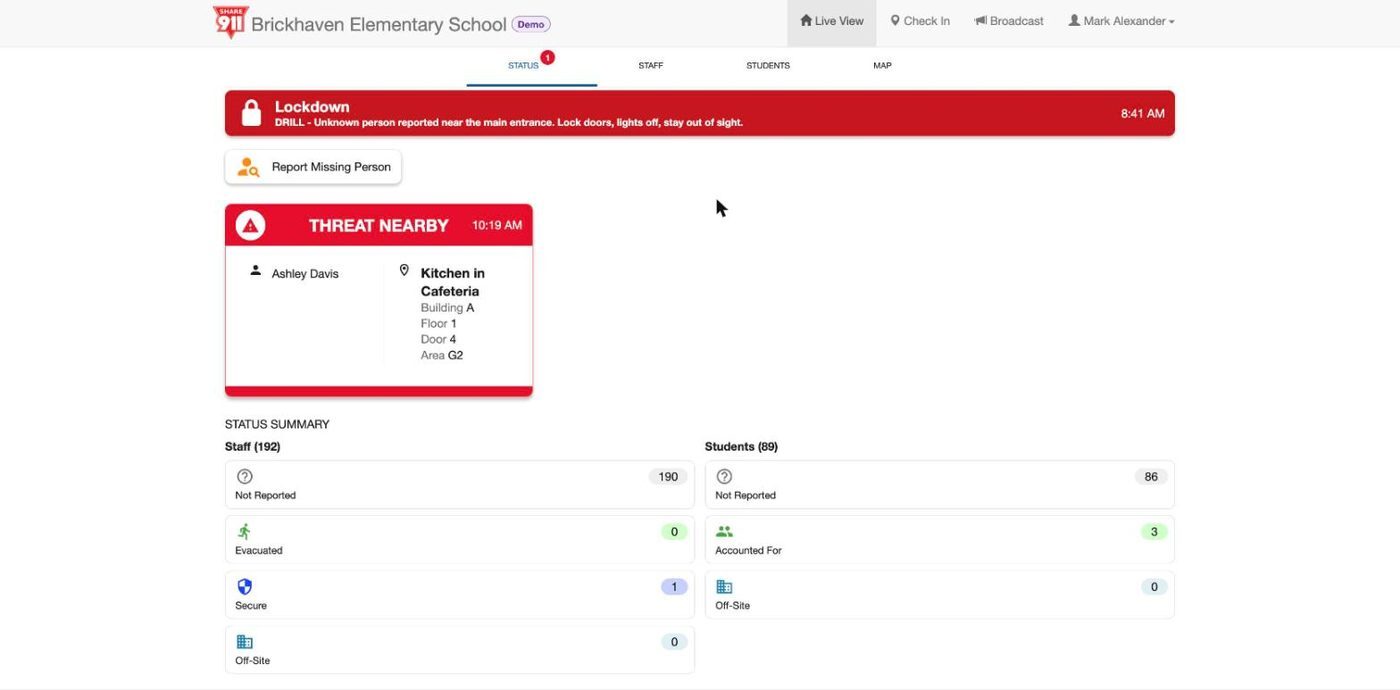
What everyone else sees seconds after a Threat Nearby check-in: who, where, and what — pinned to the top of Live View.
Share911 never replaces calling 911. If you need to call 911, call 911. What we suggest is the order: activate Share911 first, so the coworkers and security people nearest you know within seconds, then call 911 if you see fit. You can also do both at the same time — call 911 with the app open. Nothing about Share911 should ever slow down a call for help.
What would you do?
Five situations, each in three lines: what you see, what you do, what happens next.
A coworker collapses in the break room.
You: Check In → Medical Emergency, location, "unresponsive, breathing." Then start first aid and call 911 if you can.
Then: Every coworker sees it on Live View, trained staff nearby start moving, responders on the platform get it, and a live operator calls 911.
You smell smoke in a storage room.
You: Check In → Fire/Smoke Condition, the room's location, what you see. Pull the fire alarm if your building's rule says to.
Then: The channel knows where the smoke is before anyone has to go looking; an Evacuate alert can follow from one tap.
Someone who shouldn't be here is in a staff-only hallway, and it feels wrong.
You: Check In → Threat Nearby, the hallway, a short description. Move away. Call 911 if you can do it safely.
Then: Everyone nearby knows where the person is; the people who can act are already moving; 911 has been called for you.
A visitor at the front desk is loud and won't leave, but nobody is in danger.
You: Check In → Security Needed, the front desk, a line about what's happening.
Then: Your security team gets it and comes to you. Nobody calls 911, and the rest of the channel isn't alerted — which is right for this one.
A Lockdown alert arrives while you're at a client site across town.
You: Check In → I'm safe → Off Site.
Then: Nobody spends time looking for you, and you can watch Live View for the All Clear from where you are.
You're done when you can name the two ways to use Check In — I'm safe, and I see something — and you'd pick Security Needed only for the fourth one.
6. Drills and everyday use
The habit: The app only works if it's on your phone and your phone is on you. Drills and everyday notices keep it from becoming the dusty fire extinguisher.
Your organization will run drills through Share911, and they look like the real thing with "Drill" on them. Treat them as practice for the six steps: read, act, check in, watch. You can turn drill alerts on or off per channel in your profile; real alerts can't be turned off.
Between incidents, Notify is how your organization reaches you about weather, transit, utilities or anything else time-sensitive. Reading those keeps the app familiar, so that when a real alert comes you're not seeing the screen for the first time.
If you wear a smartwatch and set it to mirror your phone's notifications (setup step 9), Share911 pushes and texts show up there too — useful when your phone is in a bag.
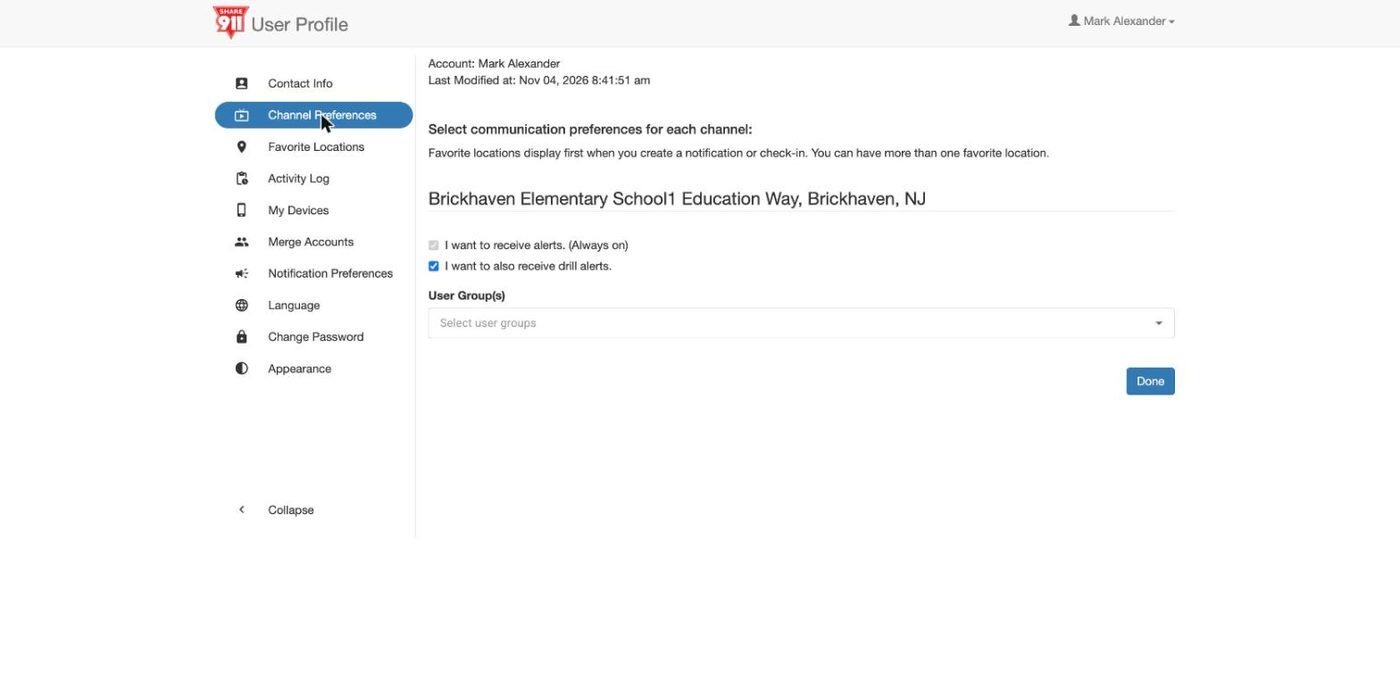
Channel Preferences: real alerts are always on; drill alerts are your choice.
You're done when you've completed one drill check-in.
7. Managing your account
Keep it current: Everything about you lives in one profile. Keep your phone number current and you'll never miss an alert.
Open the menu under your name and tap your name card to reach your profile. The sidebar, in the order you'll care about it:
- Contact Info — your mobile number (a new number triggers a new welcome text), job title and emergency contact. Change your mobile number
- Notification Preferences — Email, SMS, Push, and the desktop popup test.
- Channel Preferences — your default channel, drill alerts per channel, and your user groups. More
- Favorite Locations — places you've checked in from are added automatically, so they're pre-selected next time.
- My Devices — every phone and browser registered to you; remove ones you no longer own.
- Language, Appearance, Change Password — as you'd expect. Change or reset your password
If you work at more than one site or change workplaces, you can be in more than one channel. Join another or change your workplace.
You're done when My Devices shows the phone you carry and nothing you no longer own.
8. Common questions
Does Share911 track my location?
No. It only knows where you are when you check in and choose a location.
Will it spam me?
Real alerts are rare. Drill alerts you can turn off per channel. Notify messages are sent by your organization, not by Share911.
Do I need the app, or is text enough?
Text reaches you, but the app is faster, shows you Live View and lets you check in with one tap. Use both.
Does my check-in go to 911?
The four emergency check-ins (Threat Nearby, Fire/Smoke, Trapped, Medical Emergency) do: they go to every coworker in your channel, directly to responders on the platform, and a live operator calls 911. Security Needed goes only to your security team. I'm safe goes to your channel.
What if I stop receiving alerts?
Open My Devices and send a test push. If nothing arrives, check Notification Preferences and your phone's notification settings, then contact your channel manager.
I got an alert for a site I don't work at.
You may be in more than one channel. Check Channel Preferences.
Three things to remember
- 911 brings help. Share911 tells everyone nearby and involved.
- Read. Act. Check in. Watch.
- If you see something, check in — you don't need to find the right person.
Know before you need it. Where does your workplace evacuate to, and where does it shelter? Who manages your Share911 channel, and how do you reach them? Which alert buttons does your workplace use? If you can't answer one of these, ask your channel manager today — not during an alert.