![S911logo350350-2.png]](https://help.getshare911.com/hs-fs/hubfs/S911logo350350-2.png?width=40&height=40&name=S911logo350350-2.png)
CONTENTS
- Obtain the Required Permissions
- Create your spreadsheet
- Visit the Import People page
- Perform the Upload
1. Obtain the Required Permissions
To import students, your account must first have the Manage Users permission.
If you need to have this permission added to your account, please contact your Share911 / Share999 account admin or email support@share911.com or support@share999.co.uk for assistance.
2. Create your spreadsheet
Supported File Formats
-
csv
-
xls
-
xlsx
Example Import Files
Save:
- Students-only (no guardian data)
- Guardians listed on separate rows
- Guardians listed on same rows
- Guardians with single name field
Delete:
- Delete students only (no guardians)
- Delete students and guardians
- Delete guardians only (no students)
Delete Action
Required columns
Students-Only:
- Action
- Student ID
Students and Guardians:
- Action
- Student ID
- Guardian Email
The Action column must have a value of: delete
There is no harm in requesting a deletion more than once. For example, if the student has already been removed previously, including them in the spreadsheet will not cause an issue during processing.
Save Action
General Rules
- If a student or a guardian does not already exist then it will be created, otherwise updated with provided values.
- One row can contain information only for the one student or for the one student and one or two guardians
Required columns:
Students-Only:
- Student ID
- Channel ID or School Name
- Student First Name
- Student Last Name
- Grade
Students and Guardians:
- Student ID
- Channel ID or School Name
- Student First Name
- Student Last Name
- Grade
- Guardian First Name
- Guardian Last Name
- Guardian Email
Add Guardians to Existing Students:
- Student ID
- Guardian First Name
- Guardian Last Name
- Guardian Email
Optional columns
For the student:
- Action - with value of "save"
- Cohort
- Student Email Address
- Optional Share IDs
- Parent Share ID
- First Name
- Last Name
- Mobile
For the student and guardians:
- Action - with value of "save"
- Cohort
- Student Email Address
- First Name
- Last Name
- Guardian combined name
- New Email
- Guardian Mobile
- Relationship
- Guardian 2 combined name
- Guardian 2 First Name
- Guardian 2 Last Name
- Guardian 2 Email
- Guardian 2 Mobile
- Guardian 2 Relationship
Further Notes on Columns
- Column order does not matter
- Column header names are not case-sensitive.
- Column header names should not be duplicated.
- Columns that are not included will leave existing values alone. For example, if a "mobile" column is not included, the existing guardian account will keep its current mobile value.
- Important! For updating guardian email you should use a new email column: ’new parent email (if changed)’, otherwise a new guardian will be created
3. Visit the Import People page
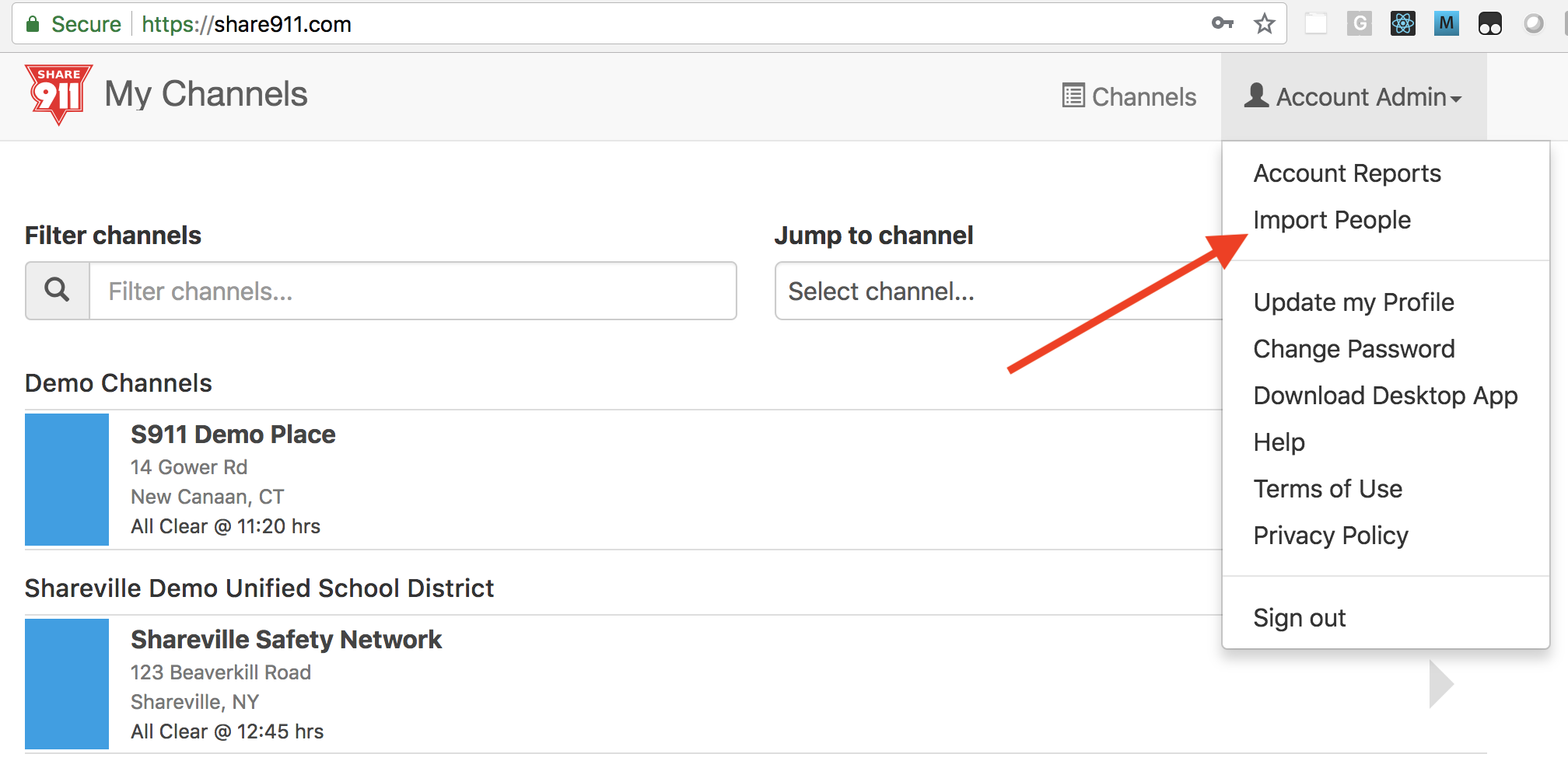
The Import People link is located near the top of your User Menu, found by clicking your name in the top-right.
4. Perform the upload
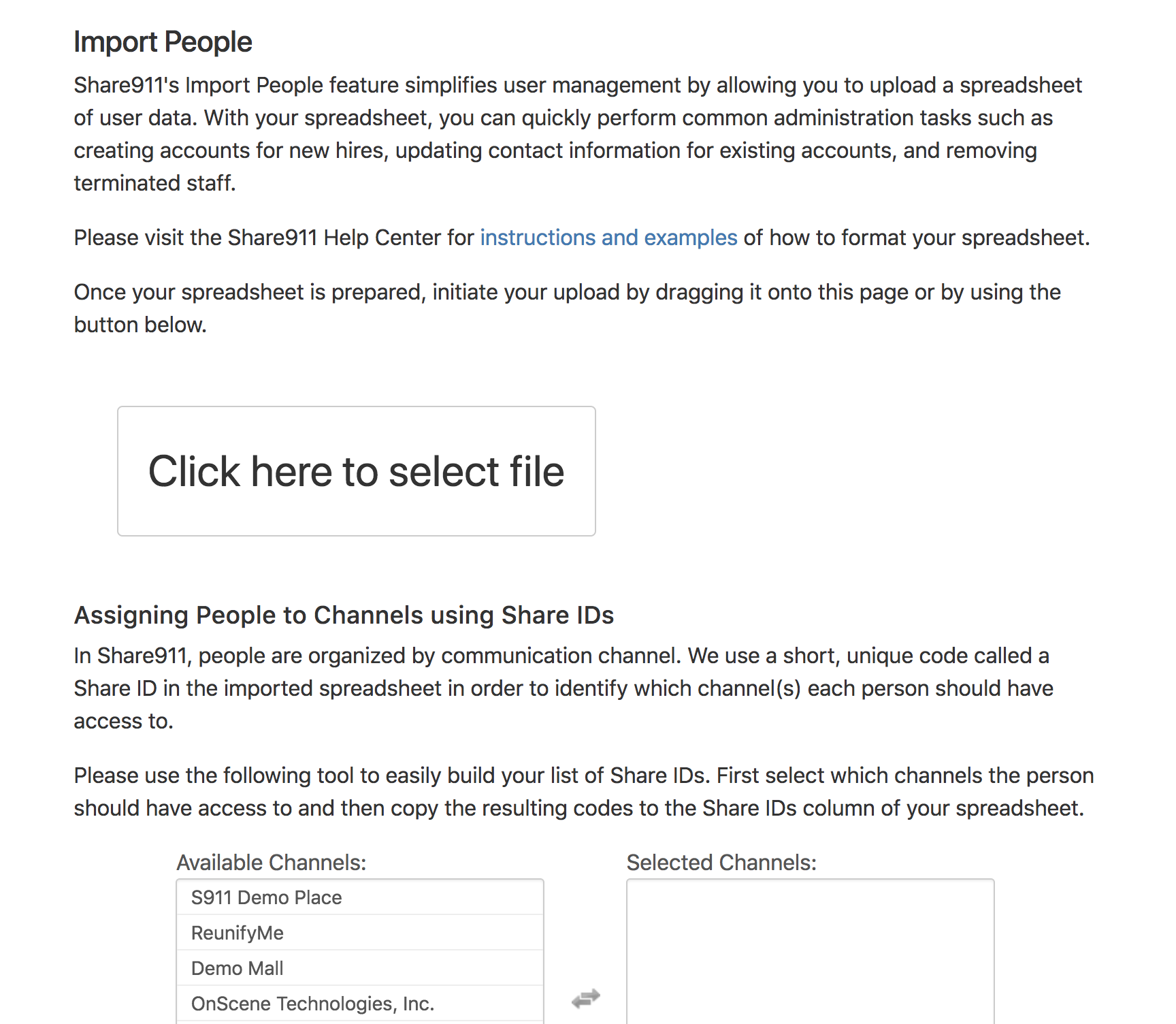
Drag your spreadsheet onto the page or click the "Click here to select file" button to initiate the import.