![S911logo350350-2.png]](https://help.getshare911.com/hs-fs/hubfs/S911logo350350-2.png?width=40&height=40&name=S911logo350350-2.png)
Share911 / Share999 can integrate with on-site systems directly, but if Informacast is already in use, it is also possible for those on-site systems to be triggered from Share911 / Share999, through Informacast.
Share911 / Share999 and Informacast integration is possible through mutual support of the Common Alerting Protocol or CAP.
There are 4 parts to integrating Share911 / Share999 and Informacast:
1. Identify lat/long coordinates for each building
2. Configure Informacast to receive CAP messages
3. Generate Authentication credentials
4. Configure Share911 to send a CAP message to Informacast when an alert is broadcast
1. Identify lat/long coordinates for each building
CAP is designed to take geographical boundaries into consideration and systems that support CAP use Latitude and Longitude to filter incoming messages which ensures only relevant messages are processed.
Each building that will be included in the integration will need its own Lat/Long coordinates. These coords will be used on both the Informacast and Share911 / Share999 side.
One quick way to find the lat/long for a building is to use Google Maps. Locate the building in question, then right-click on a desktop browser or long-press on a mobile device to see the lat/long coordinates.
Here is an example of the lat/long coords of Apple HQ:
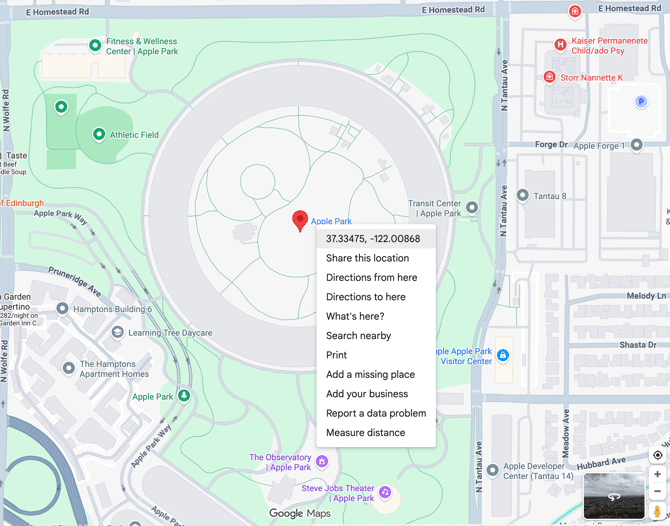
We will use both the coordinates and address of each building in future steps.
2. Configure Informacast to receive CAP messages
This help article from Singlewire has the general steps to configure Informacast:
https://support.singlewire.com/s/article/Custom-Inbound-CAP-source-with-InformaCast-Fusion-or-Mobile
NOTE: Some of the links in their article are out of date.
Following their article, the first step is to tell Informacast what to do when it receives the trigger. To accomplish this, create a separate Message Template for each building to be integrated and select the appropriate Recipients:
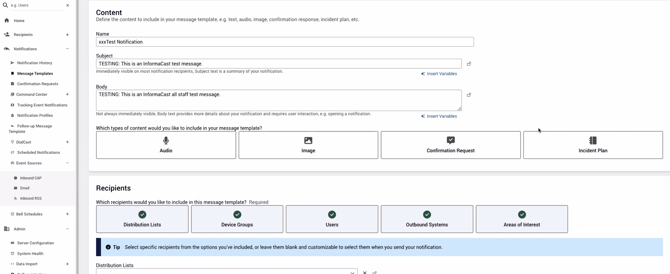
Here are some example Message Templates that were set up to test the integration: 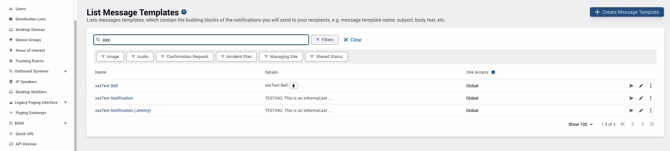
Once the Message Templates have been created, create an Inbound CAP rule for each building that will be part of the integration. The Inbound CAP rule form can be found under Notifications => Event Sources.
NOTE: It is critical that the Message Template and the lat/long coords in the Rule Expression match the same building. If they do not match, an alert in one building will activate on-site devices in a different building.
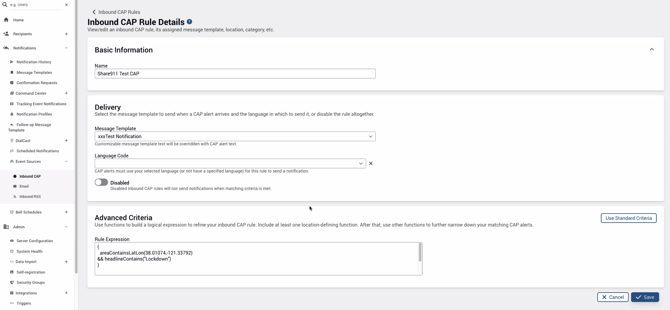
Rule Expression must include the following:
(
  areaContainsLatLon(<lat>,<long>) && headlineContains("<alertName>")
)
Where <lat>, <long> are the coordinates from Step 1 and <alertName> is the specific type of alert that the integration is for. For example:
Lockdown:
(
  areaContainsLatLon(37.33479,-122.00888) && headlineContains("Lockdown")
)
Evacuate:
(
  areaContainsLatLon(37.33479,-122.00888) && headlineContains("Evacuate")
)
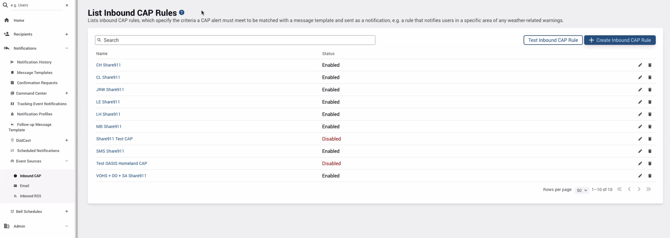
Here is an example of what these rules would look like. In this example, "CH", "CL", etc. are abbreviations for different buildings:
3. Generate Authentication credentials
Authentication is required to use the Informacast API. To authorize Share911 / Share999, create a Service Account token, as described here:
https://support.singlewire.com/s/article/InformaCast-Scenarios-API-Integration-Setup
...in the Authentication section, Option 2 - Configure a Service Account.
Save the "Generated Security Token" for use in Step 4.
NOTE: at the time of writing, Security Tokens expire annually so they will need to be recreated each year.
4. Configure Share911 / Share999 to send a CAP message to Informacast when an alert is broadcast
The Manage Channel permission is required in Share911 for each channel that will be included in the integration. Email support@share911.com / support@share999.com to request permission.
The Share911 feature we use for CAP integrations is a Webhook. Webhooks are configured to send a digital payload to an external system whenever the triggering event occurs. In our case, we will select a specific type of alert as the trigger.
To configure the first webhook, navigate to the channel, then open the User Menu in the top-right. Select Manage Channel => Integrations => Webhook 1.
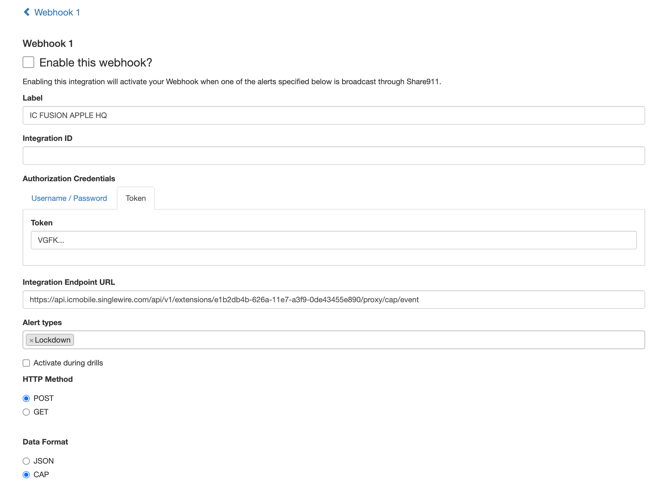
Label the webhook as appropriate. Integration ID can be left blank.
Under Authorization Credentials, select Token and enter the access token from Step 3.
The Integration Endpoint URL should be:
https://api.icmobile.singlewire.com/api/v1/extensions/e1b2db4b-626a-11e7-a3f9-0de43455e890/proxy/cap/event
Select CAP as the Data Format.
Next we will use the Lat/Long for the building in question by setting up an <area></area> XML element in the Extra Data form field. This is a required part of CAP integrations with Informacast and must be entered in a specific format. Here is an example of how it would be done for Apple HQ:
<area>
  <areaDesc>Apple HQ - One Apple Park Way, Cupertino, CA 95014</areaDesc>
  <circle>37.33479,-122.00888 0.2</circle>
</area>
NOTE: The <circle></circle> element has 2 parts! Lat/Long is the first part and a radius is the second. A radius of 0.2 is recommended, but it can be adjusted based on the density of your buildings.
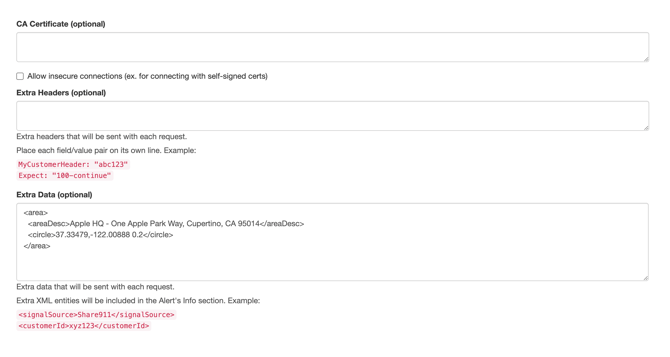
Once the data has all been entered, you can enable the webhook by checking the box at the top labeled Enable this webhook?.
A separate webhook can be configured for each alert type you would like to use an an event source. The default number of webhooks in Share911 / Share999 is 4 but more can be allocated if needed.
Once enabled, the integration is complete.